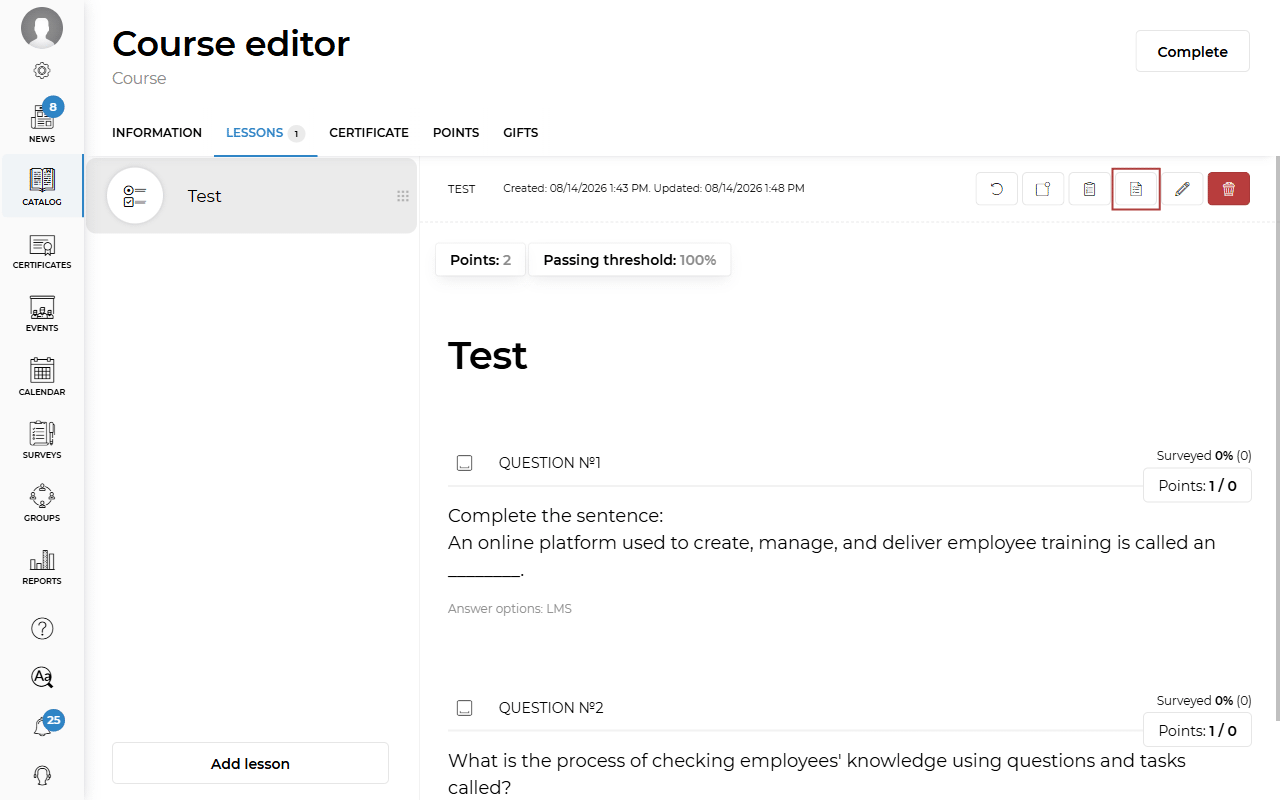
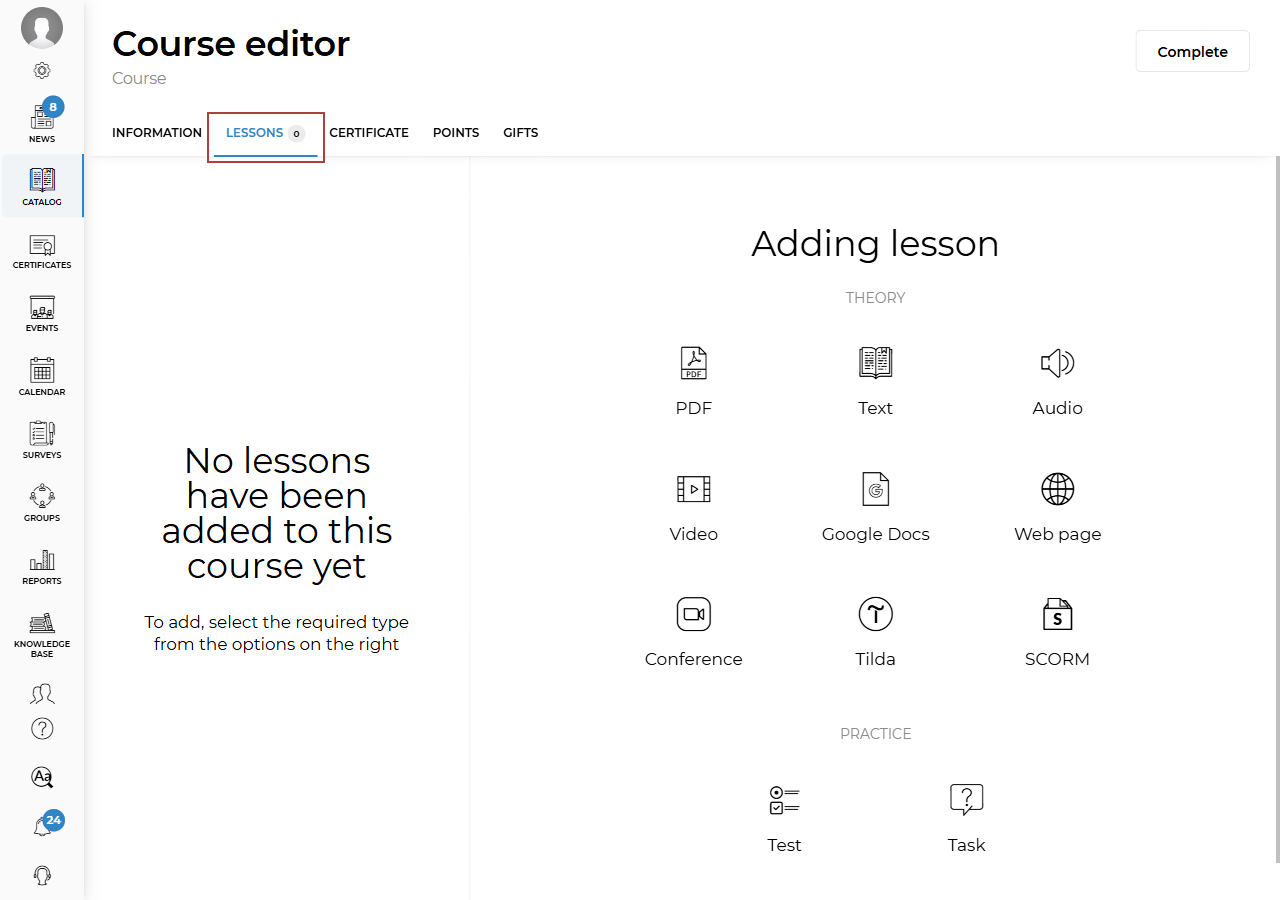
To create a test lesson, go to the Course editor. In the upper-left corner, go to the Lessons tab and click the Test icon in the Add lesson field.
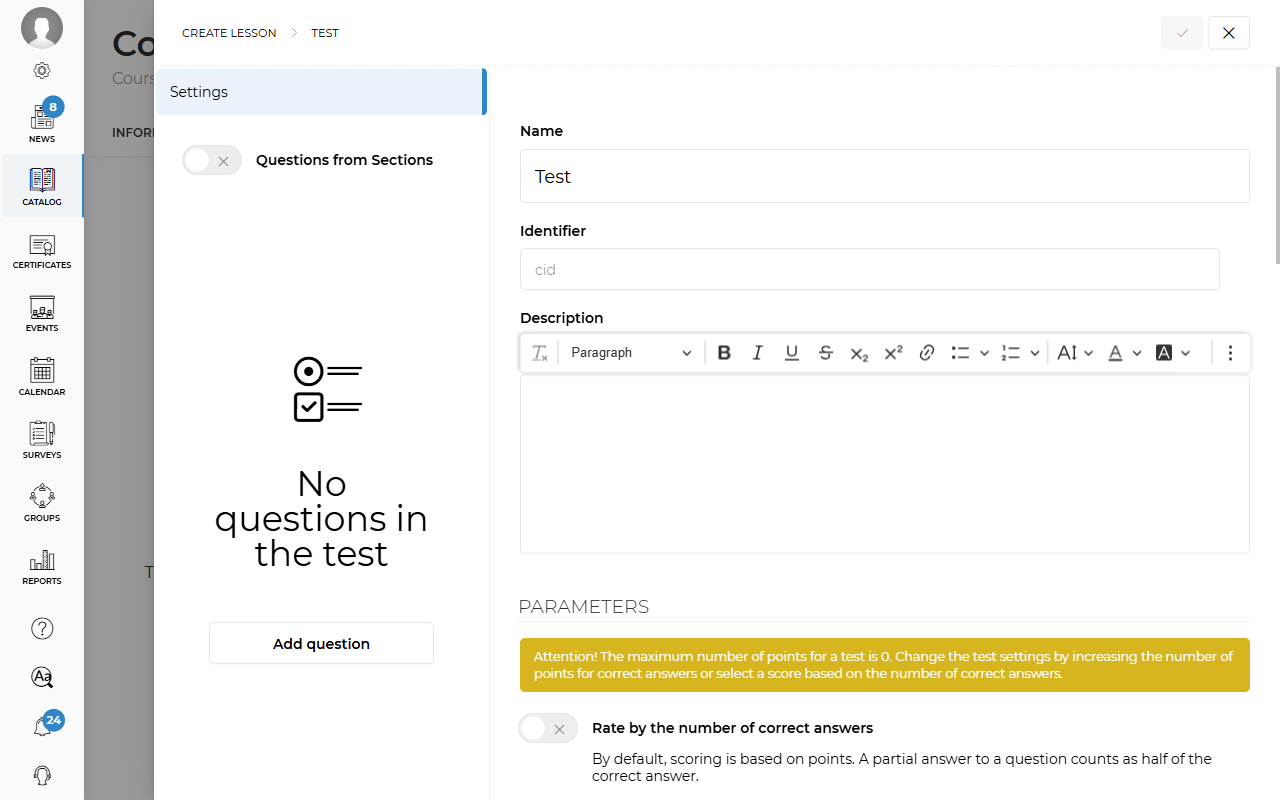
Enter the Lesson name. You can optionally add a description and a personal identifier.
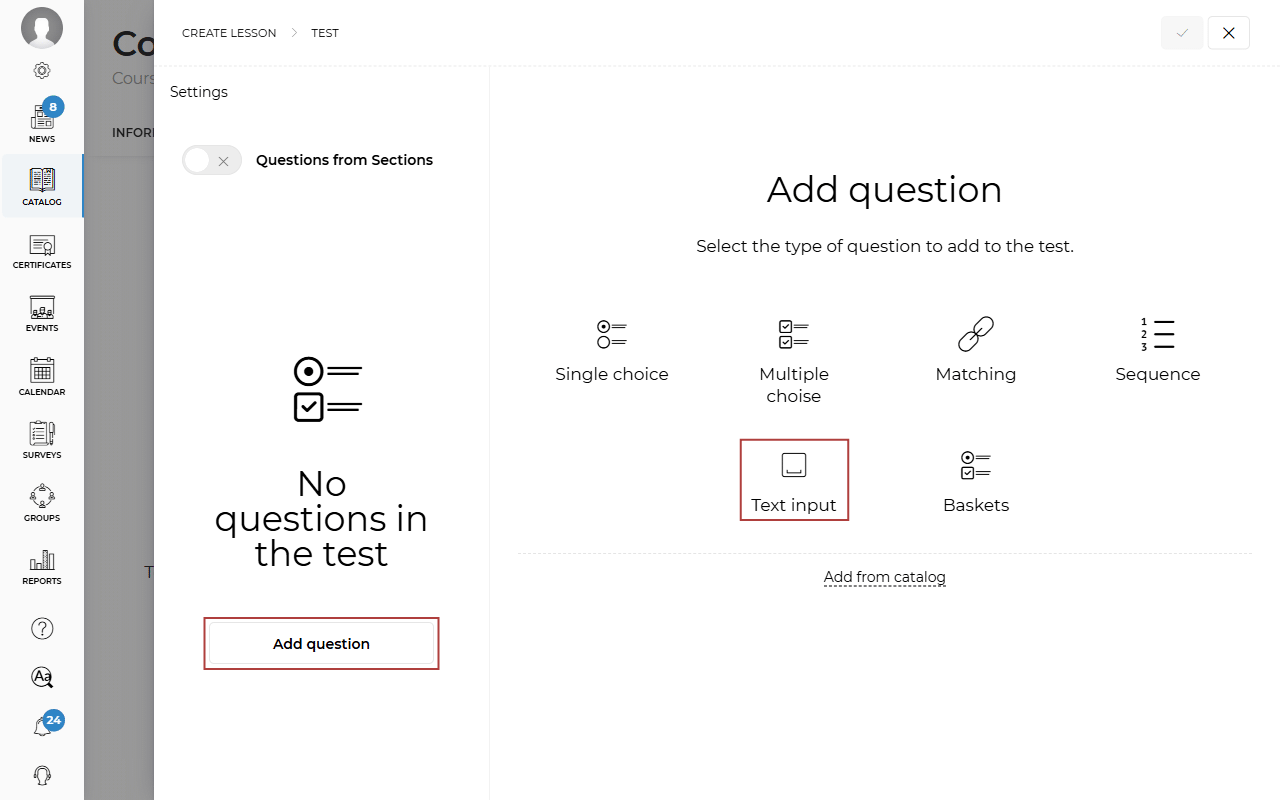
Next, click Add question and select Text input.
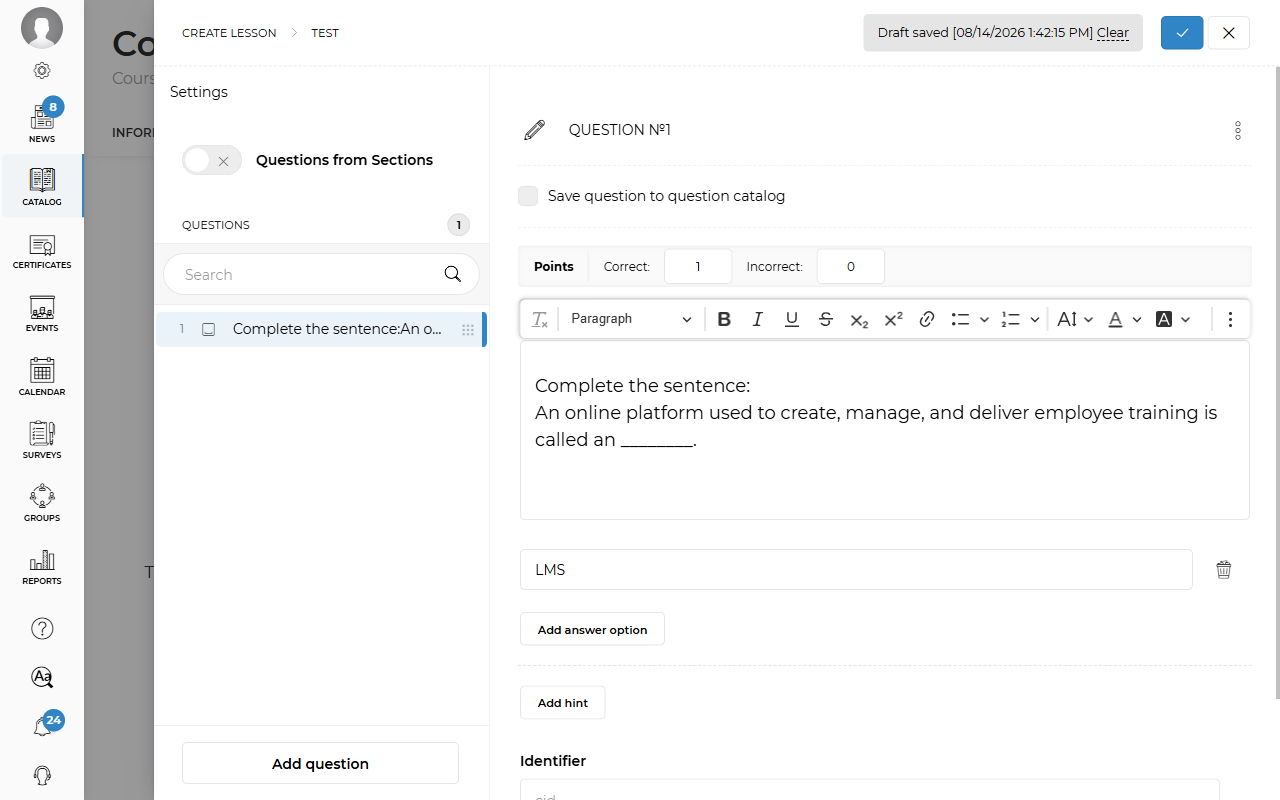
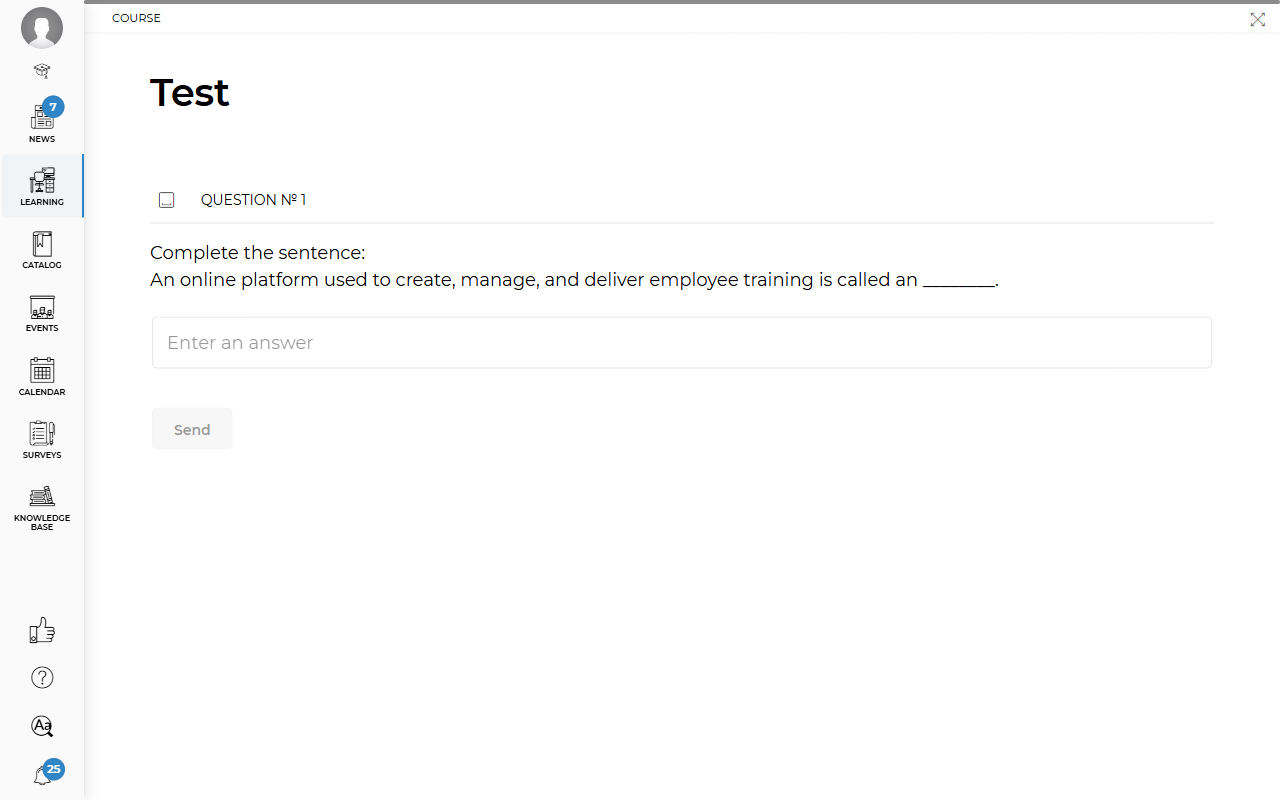
Enter your question and possible answer options. When taking the test, the student will see this test type as an open-ended question where they need to enter an answer. The answer must match the answer entered in the test editor; otherwise, it will be marked as incorrect. The answer is evaluated based on the number of spaces between words and the placement of commas, periods, and other punctuation marks. Uppercase and lowercase letters do not affect the result. To add a hint for the student, click Add hint. The student will see it after submitting the answer in the test lesson. You can also save this question to the Question Catalog so that you can add it to other test lessons later.
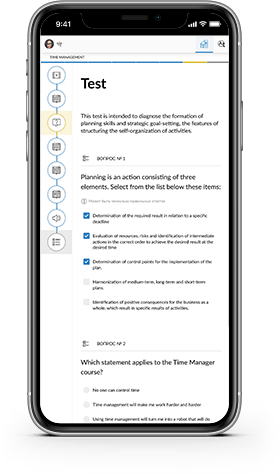
How the student will see this test:
After you have added all the questions, you can go to the test settings and enable various parameters for the student to take the test.
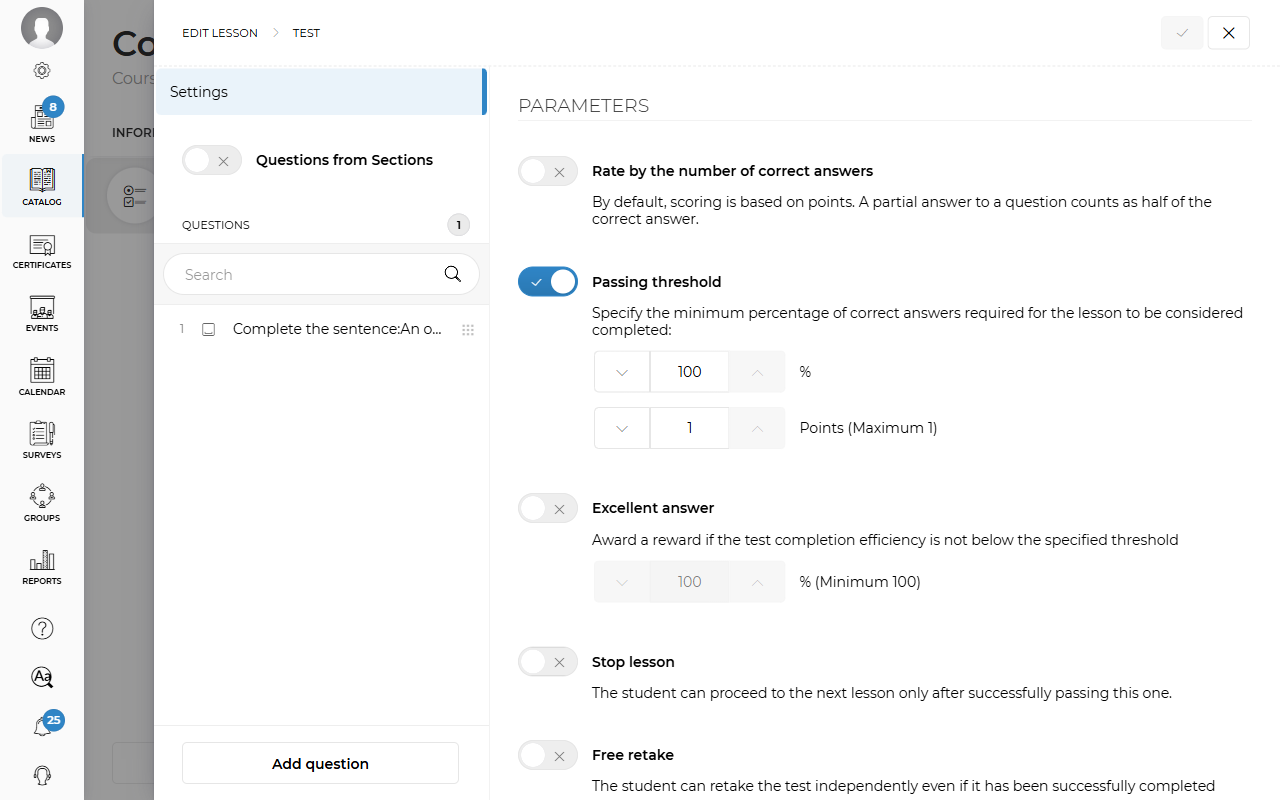
- Score based on the number of correct answers. When enabled, the score is calculated in points by default. A partially correct answer counts as half of a correct answer. The passing threshold must be enabled for this feature to work correctly.
- Passing threshold. The minimum percentage of points that must be earned for the lesson to be considered completed.
- Excellent answer. The student receives a reward if their test score meets or exceeds the value specified in this setting.
- Stop lesson. The student will not be able to proceed through the course until they complete this lesson.
- Unlimited retakes. The student will be able to retake the test independently even after successfully completing it.
- Attempt limit. The student will be able to retake the test a limited number of times if they do not pass it.
- Time limit. The student will have the specified number of minutes to complete the test.
- Question selection. With each attempt, the student will receive a random selection of questions from the total number of questions.
- Shuffle answer options. The answer options will be displayed to the student in a random order.
- Lesson lock. Access to other lessons will be blocked while the student is completing this lesson.
- Test question answer status. After submitting their answers, the student will see which questions they answered incorrectly, correctly, or partially correctly.
- Hide questions. The student will not see the questions after completing the lesson until the specified date (if a date is selected).
- Hide answer options. The student will not see the answer options after completing the lesson until the specified date (if a date is selected).
- Highlight answer options. After submitting their answer, the student will see which answer options were selected correctly and which were not.
- Show correct answers. The student will see which test answers are correct after completing the lesson.
If you want to change the order of the test questions, click and hold the question you want to move, then drag it to the desired position.
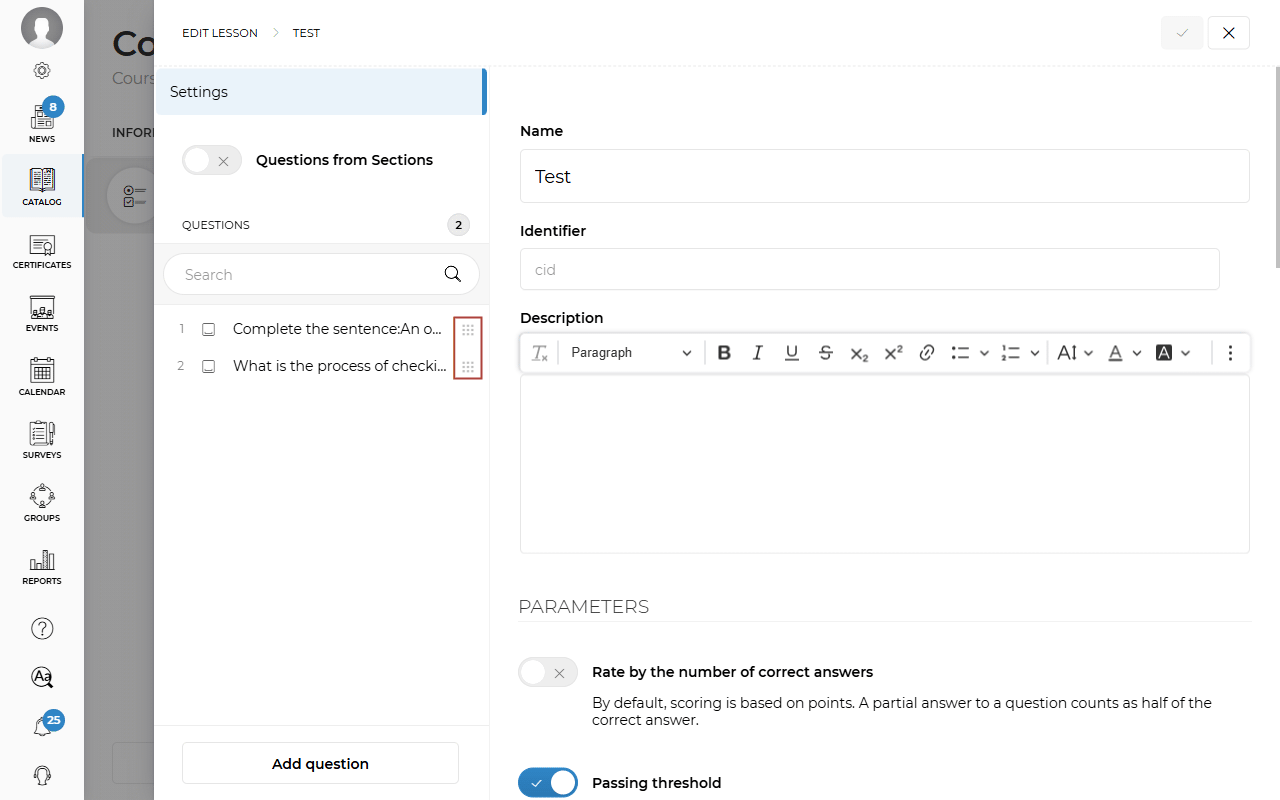
After creating the test lesson, do not forget to save it by clicking the checkmark in the upper-right corner.
After creating the test lesson, you can edit it at any time. To do this, go to the Lessons tab and click the Pencil icon. If you want to delete the test lesson, click the Trash icon. You can also reassign the lesson to all students assigned to the course. For example, if you have edited the test and want students to take it again, click Reassign to everyone.
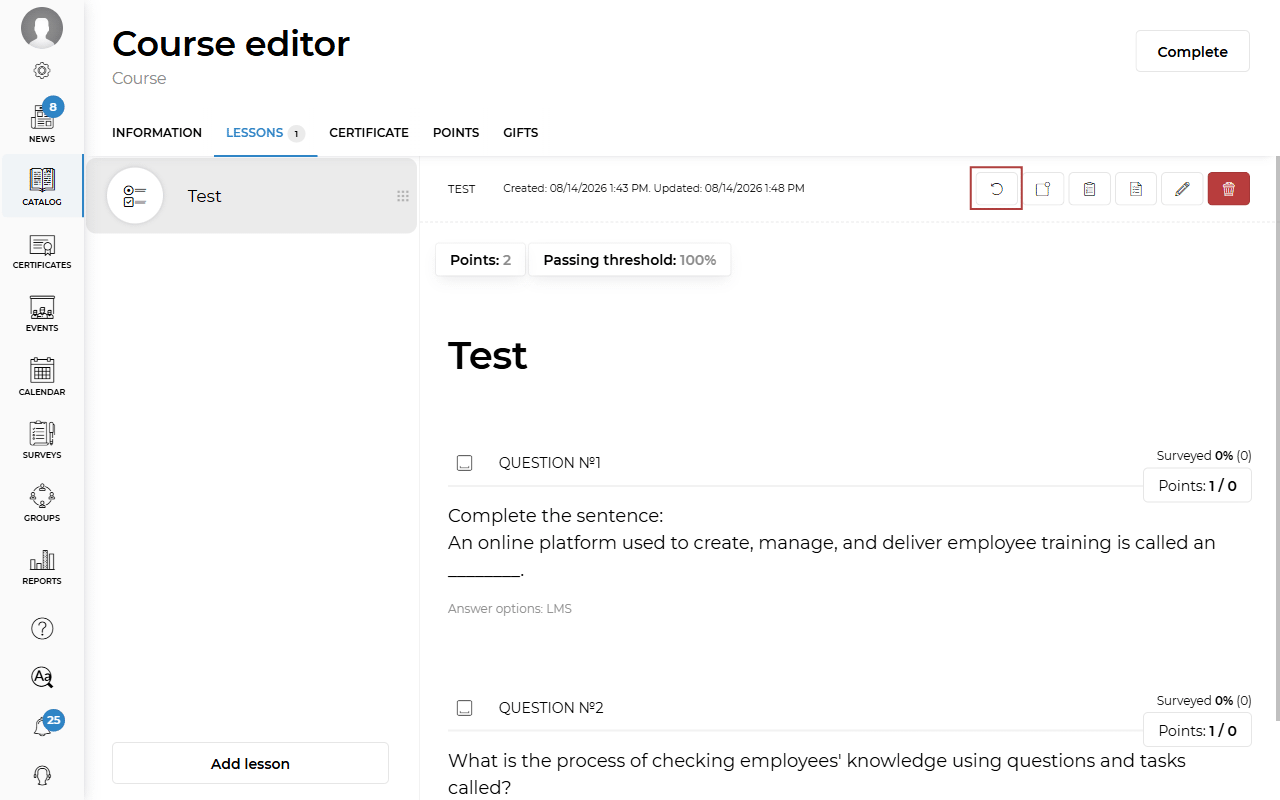
You can add all the questions from the test lesson to the Question Catalog for later use in other courses. To do this, click the Save all to question catalog icon.