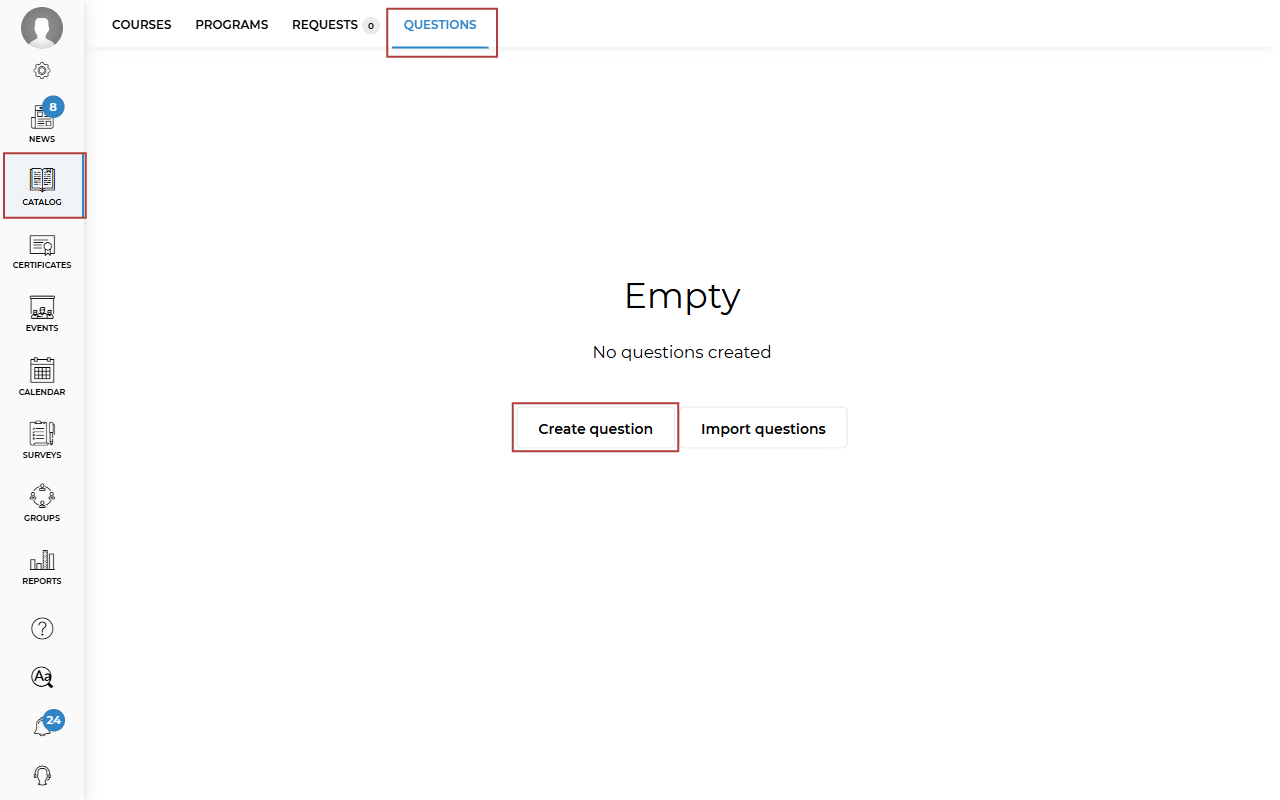
To create a Question Catalog, go to the Catalog section and open the Questions tab. Then click Create question.
There are four question types available, just as when creating a quiz lesson in a course. Select the type you need.
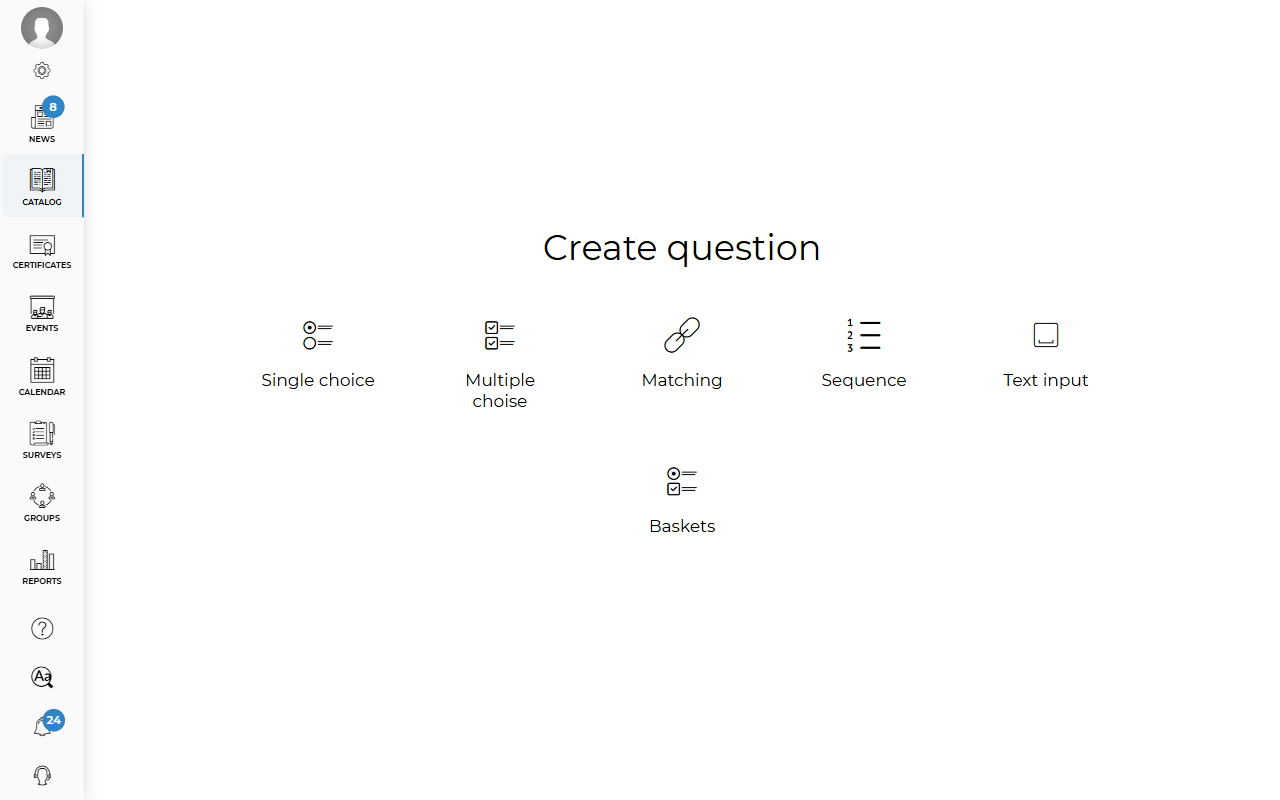
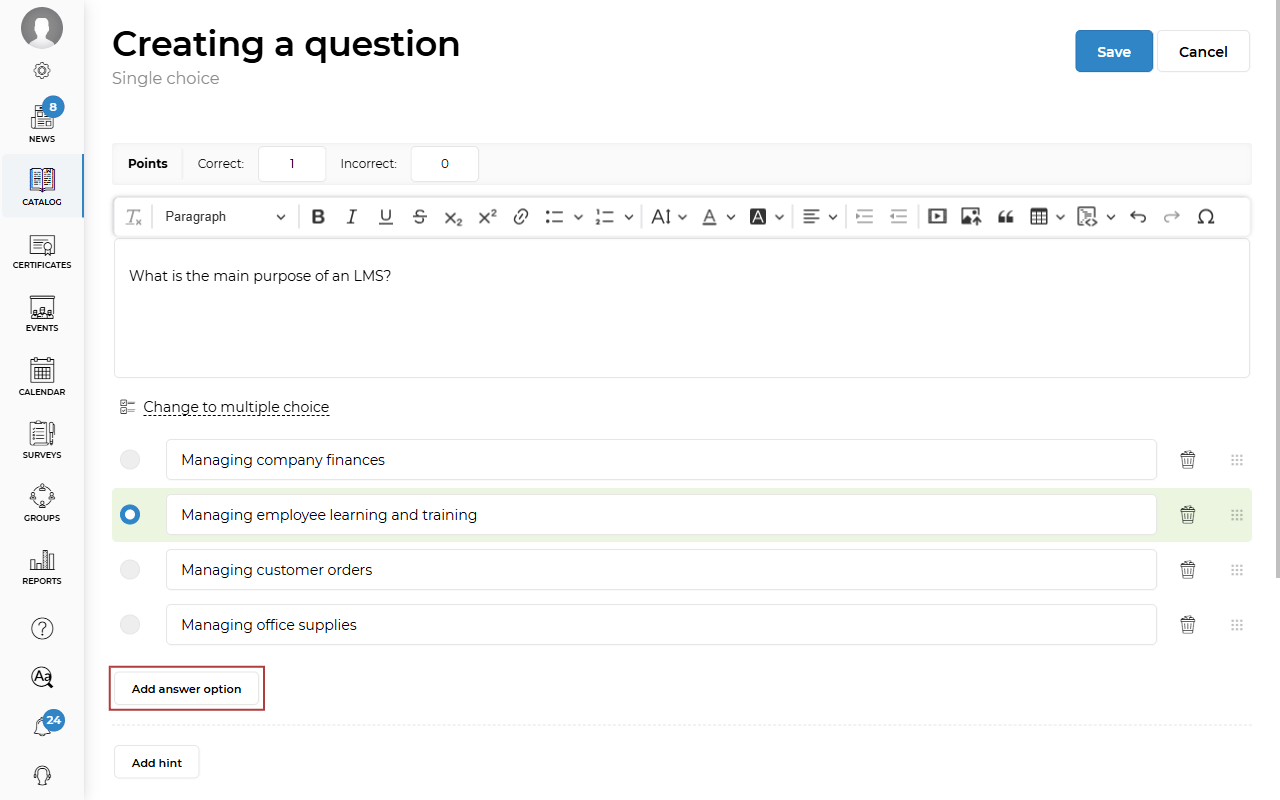
For example, to create a single-choice question, click its icon. The question creation page opens. Enter the question, then add answer options by clicking Add answer option. After adding the options, mark the correct answer. To delete an answer option, click the trash bin icon to the right of the corresponding answer field.
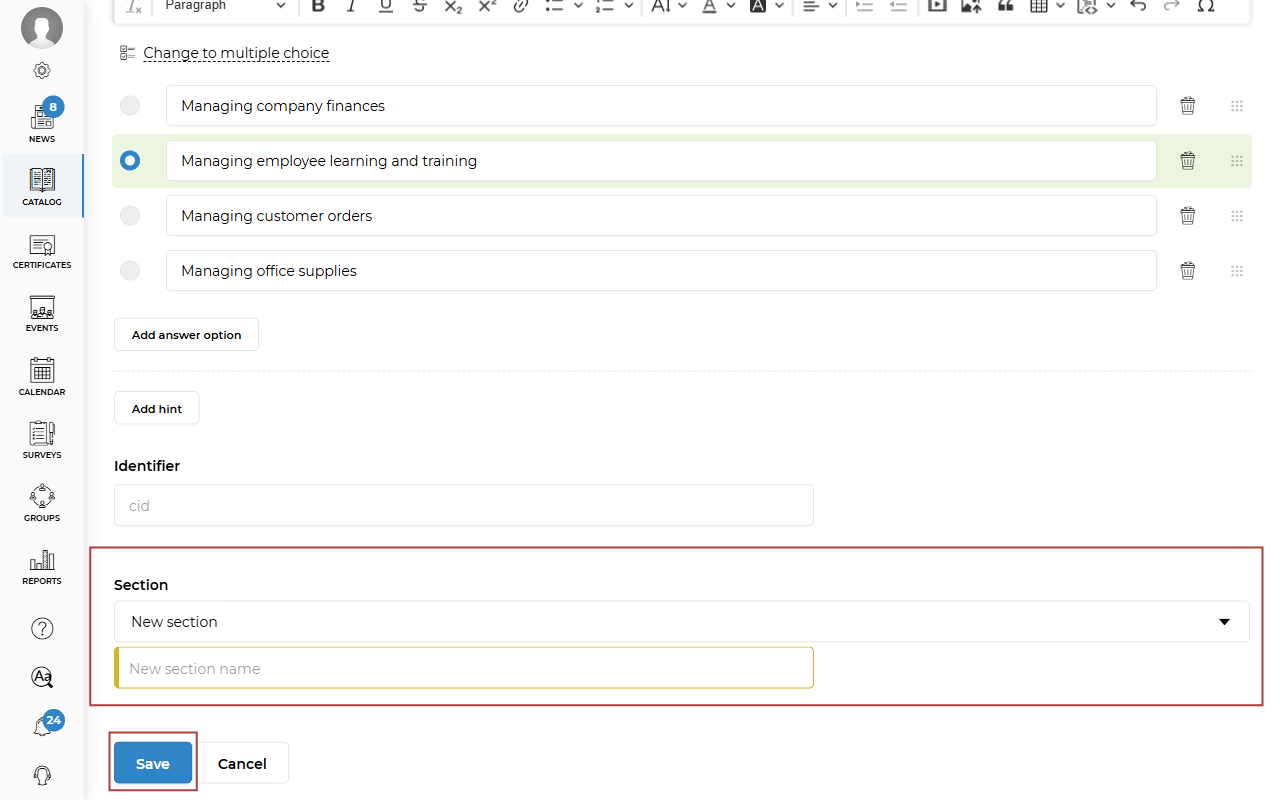
You can optionally add a hint for the trainer and a question ID. You can also select a section for your question. If the section has not been created yet, click New section and enter its name. Then click Save.
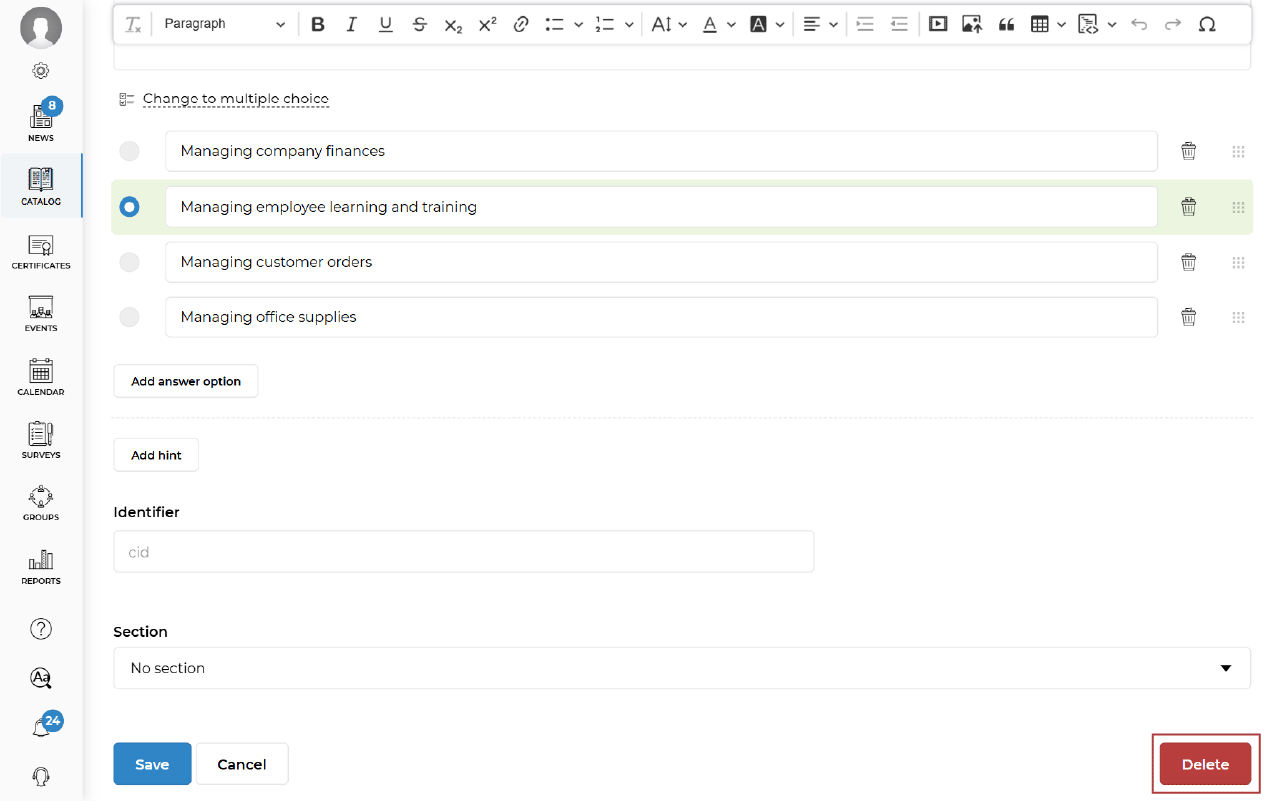
If you want to delete a question, click Delete at the bottom of the screen.
After saving, you will see the question you created. If you want to create a new question, click the Plus icon in the upper-right corner. If you want to edit a section, open the required section by clicking it, then click the Pencil icon in the upper-right corner. If you want to add a new section, click Add section in the lower-left corner of the screen.
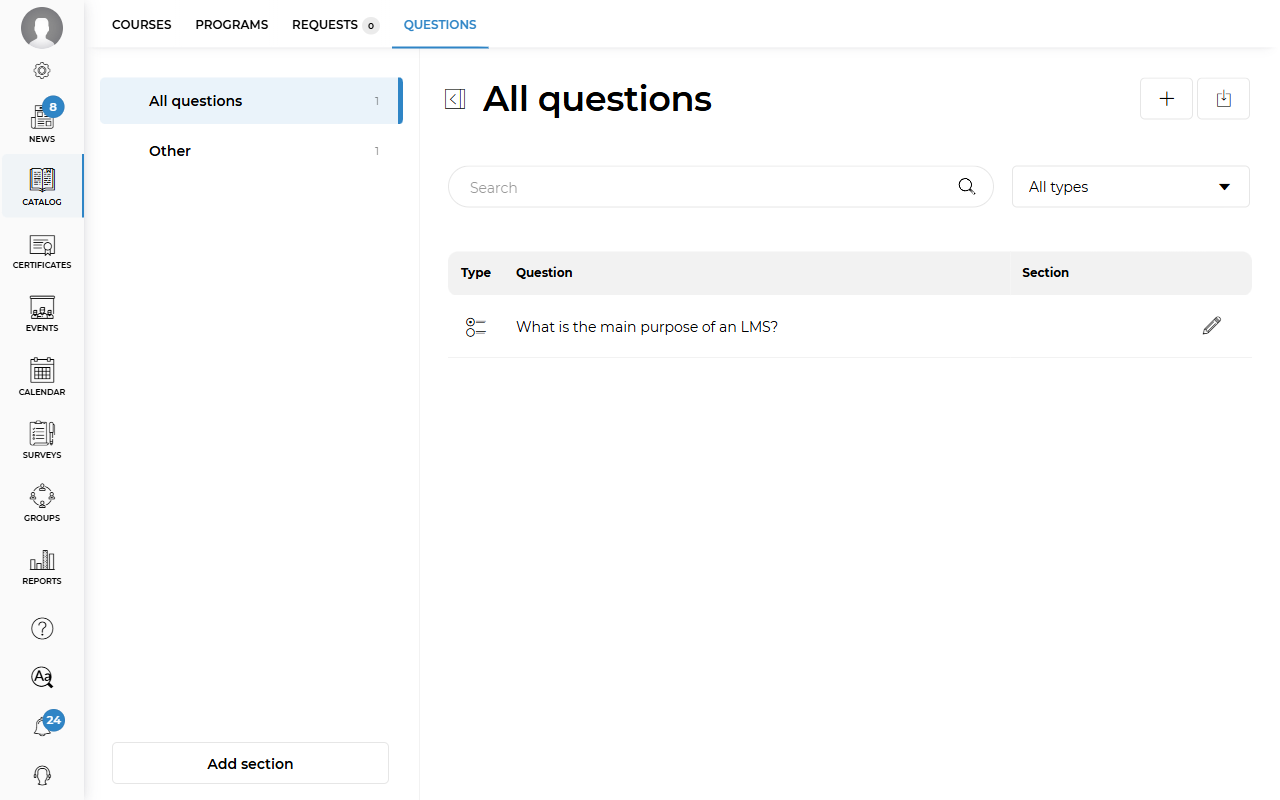
You can find the question you need by entering text in the Search field. You can also filter questions by type by clicking the All types field and selecting the desired option.
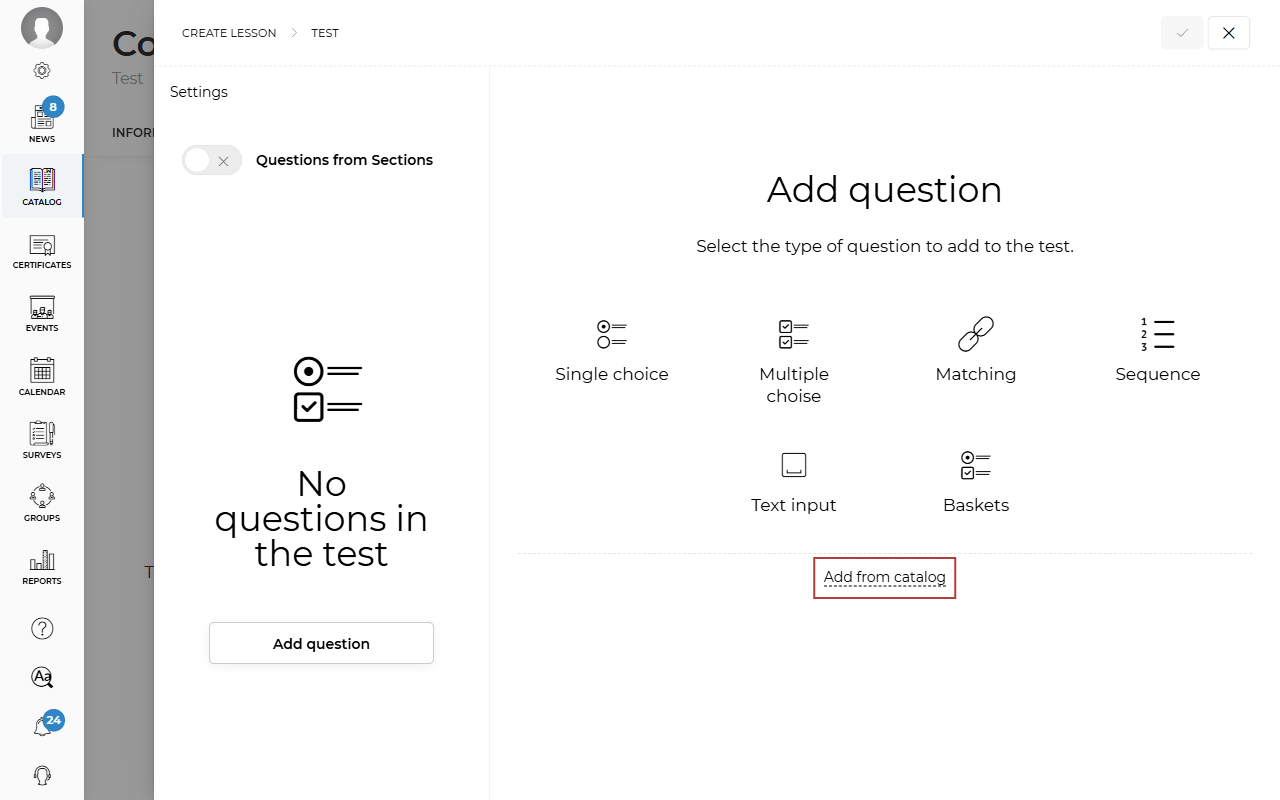
To add a quiz question from the catalog to a lesson, open the quiz lesson editor and click Add question → Add from catalog.
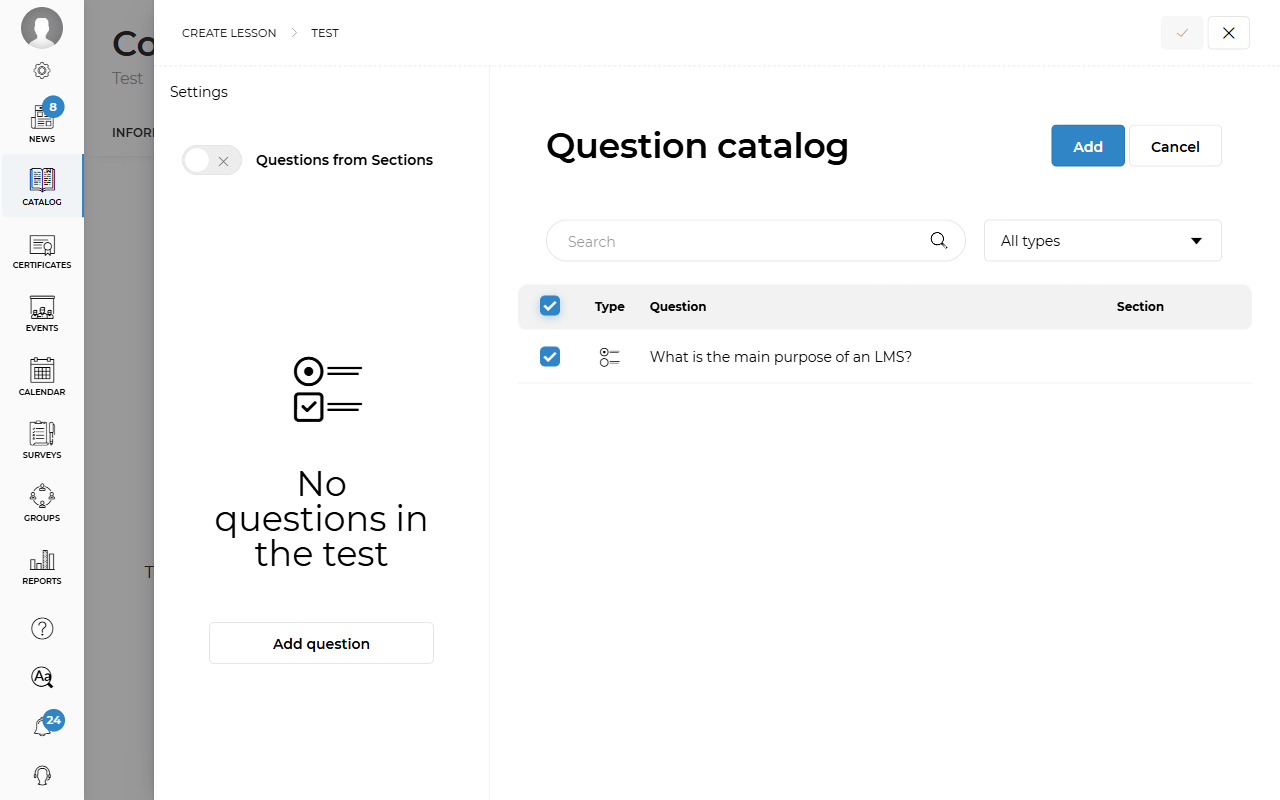
Check the box next to the question options you need and click Add.
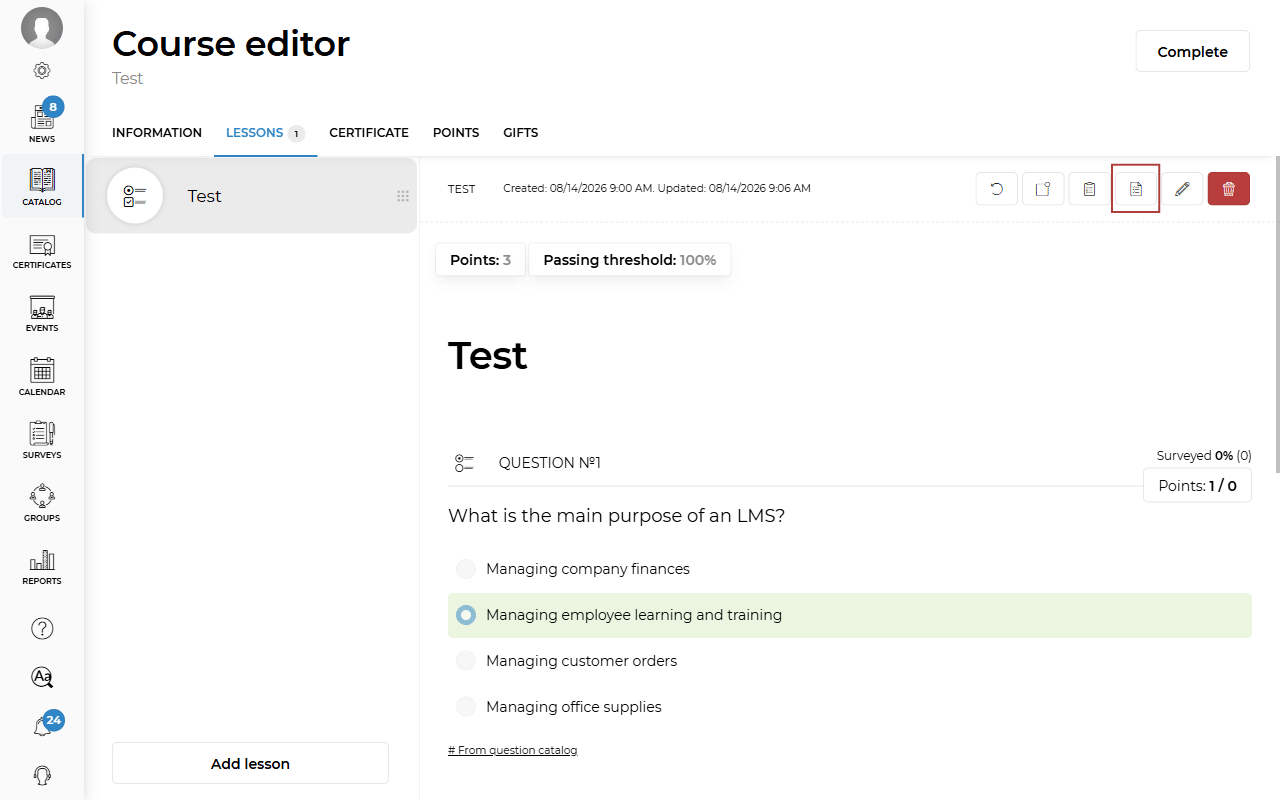
A question added from the Question Catalog will be marked with the corresponding icon. You will also see a hint above the question itself and in the quiz lesson preview.
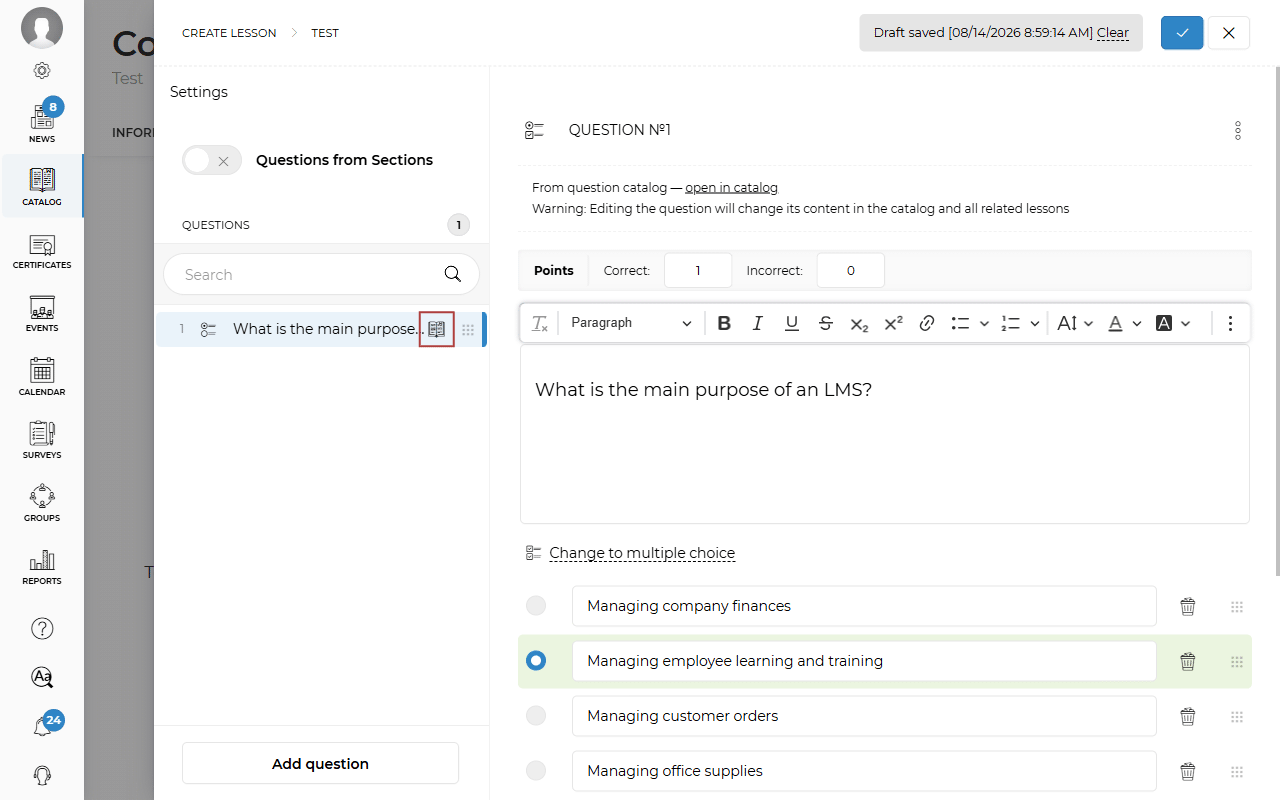
Please note that if you edit a question from the Question Catalog, the changes will apply everywhere the question has been added. You can edit the question either in the Question Catalog editor or directly in the quiz lesson. After saving, the question will be updated in all linked lessons.
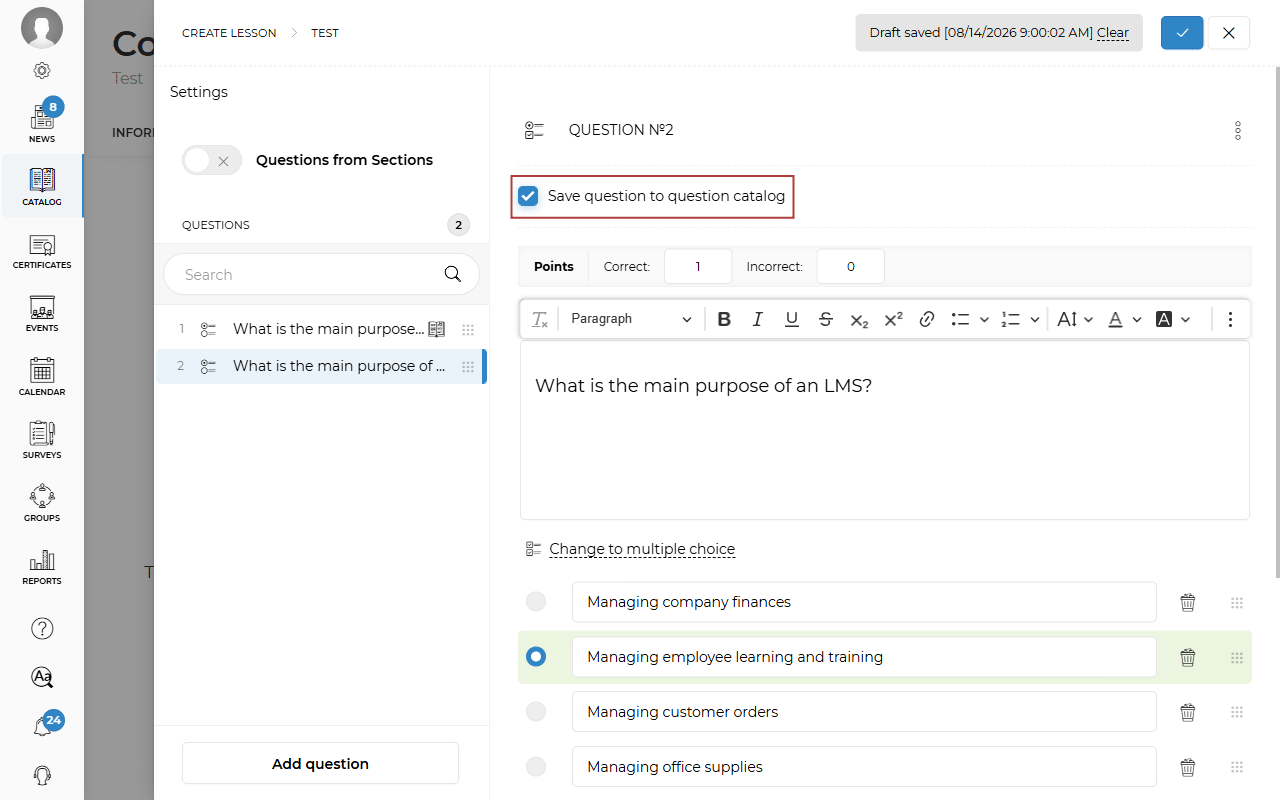
To add a created quiz question to the Question Catalog, open the question you want to add in edit mode, select the Save question to question catalog checkbox, and click Save.
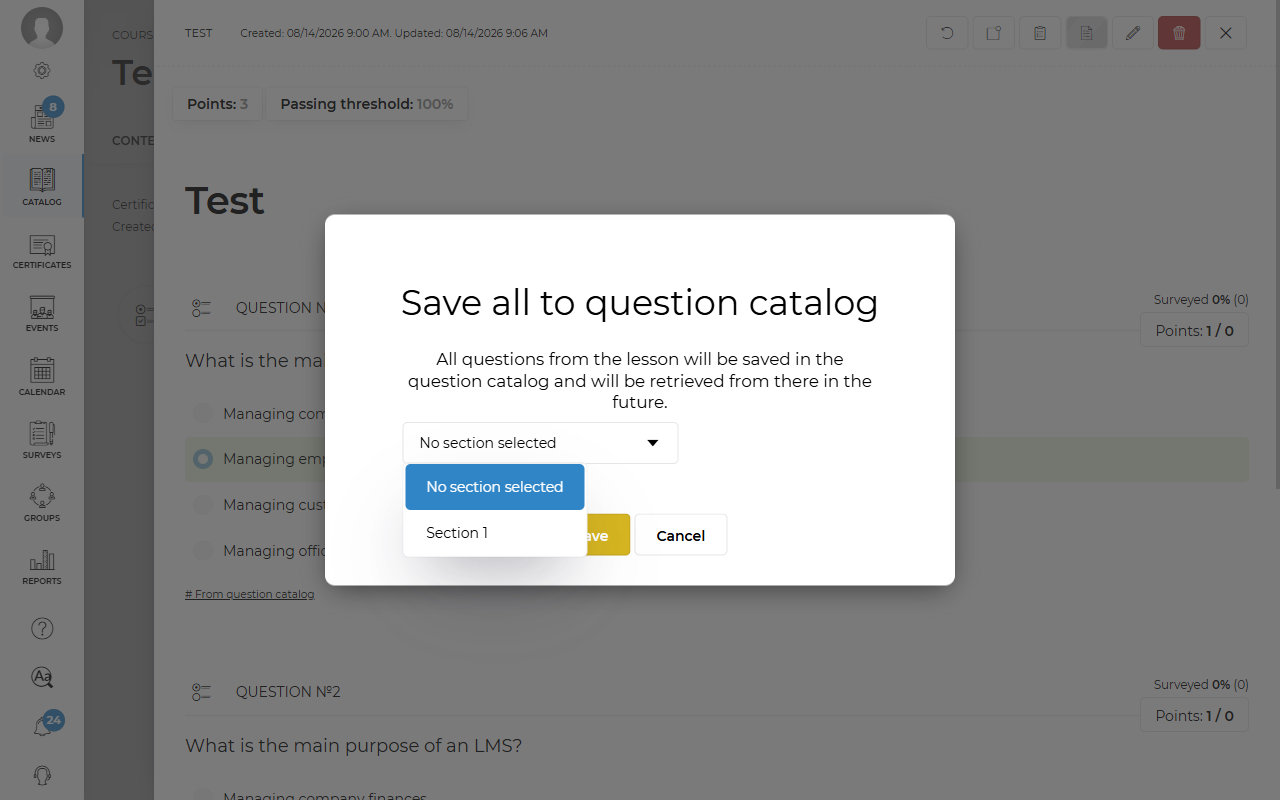
If you want to add all questions from the quiz lesson, click the Save all to question catalog icon.
You can then select the section where you want to add the questions. Click Save.