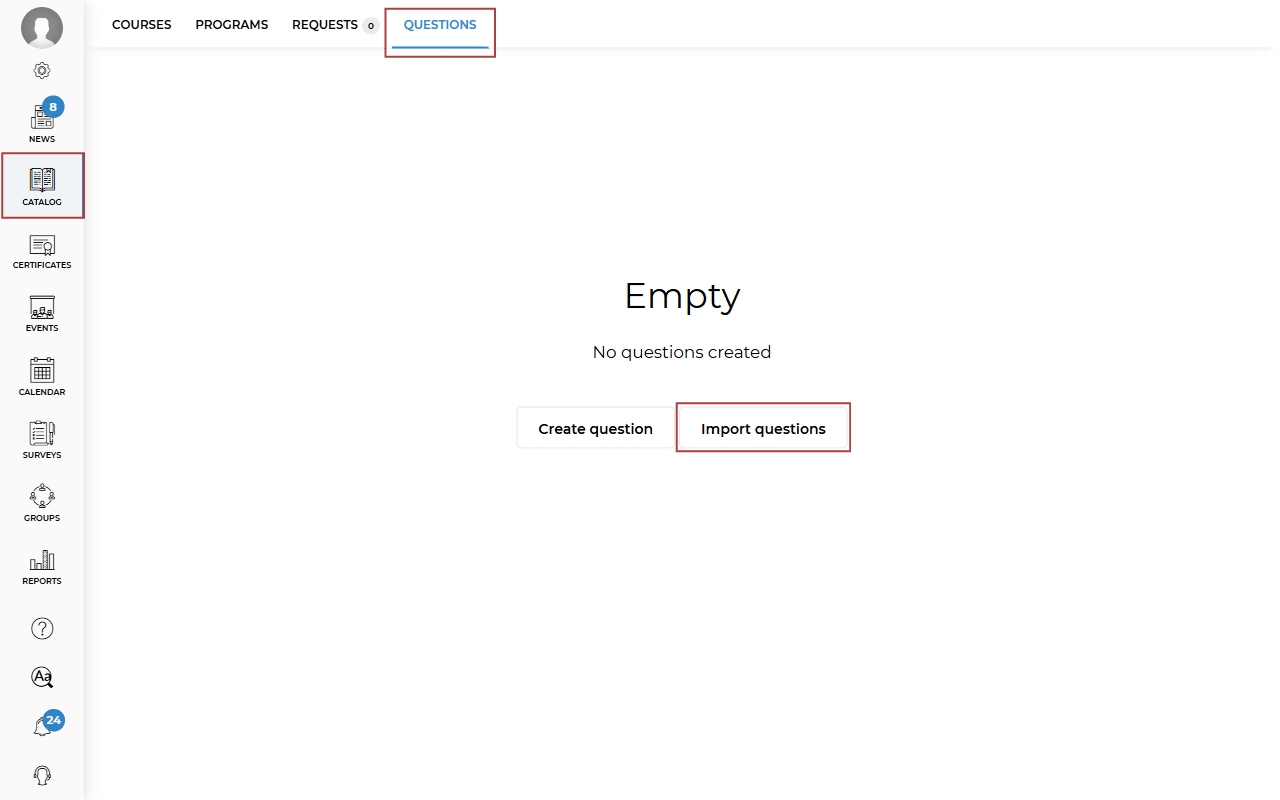
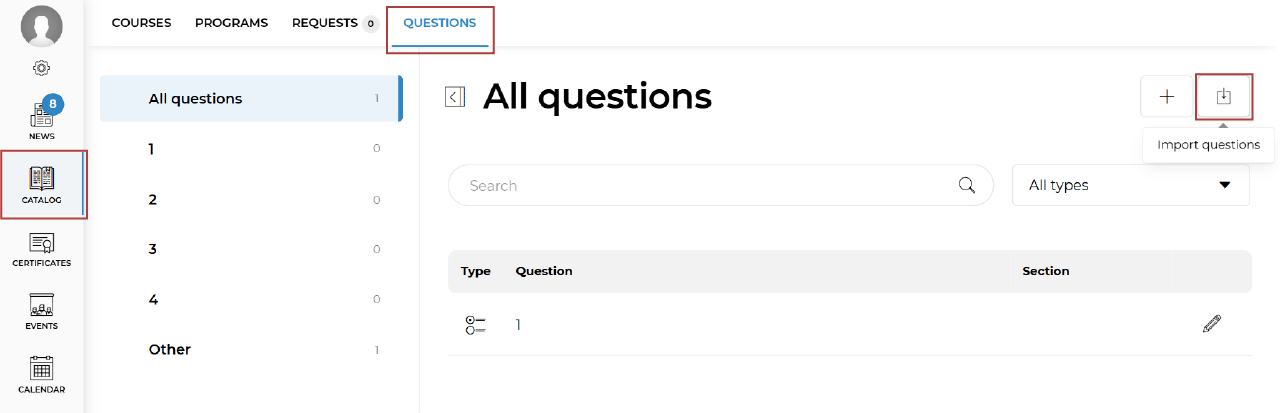
To import questions, go to Catalog — Questions — Import questions.
If you have already added test questions, the import icon will be located in the upper-right corner of the screen.
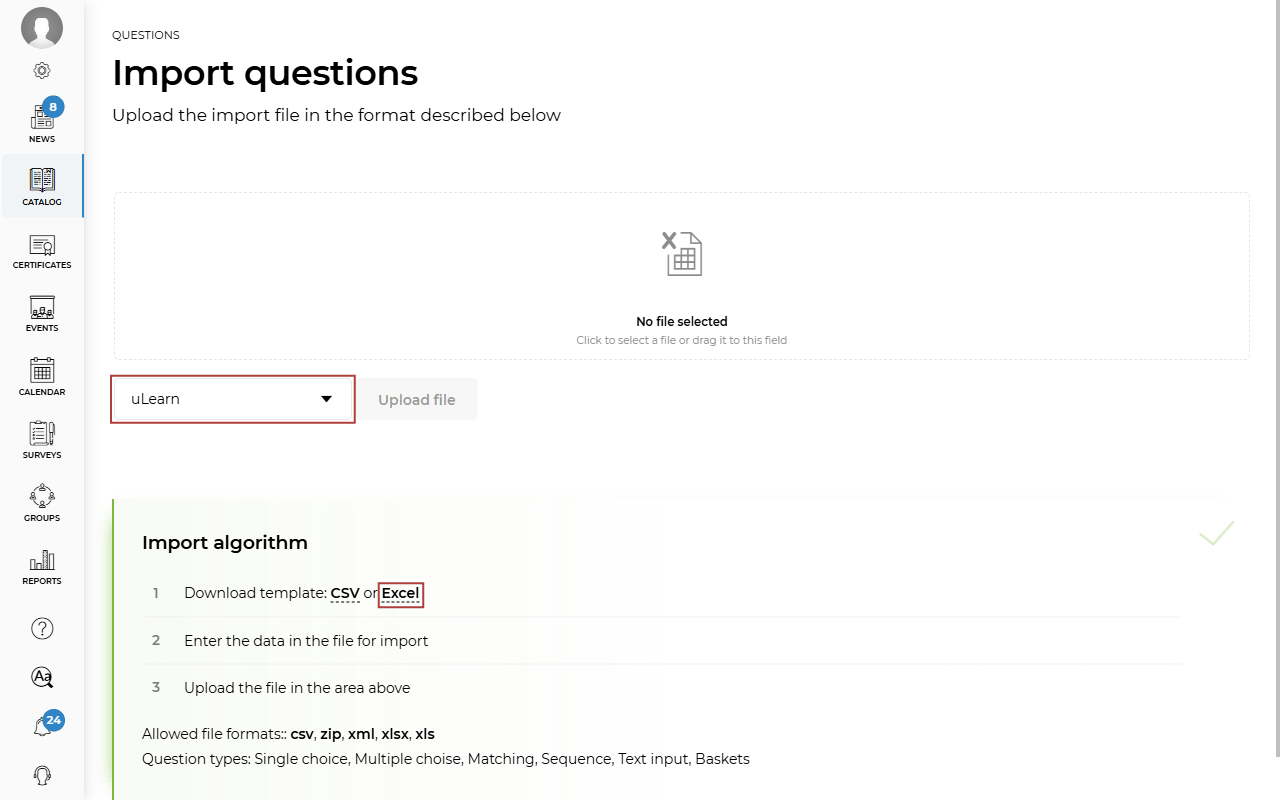
Next, select the file format to upload: uLearn, ISpring, or QTI. To upload files in ISpring or QTI format, use the corresponding templates. Only question types supported by the platform can be imported.
If you select the uLearn format, download the Excel template and open it.
The file contains the following columns that need to be completed:
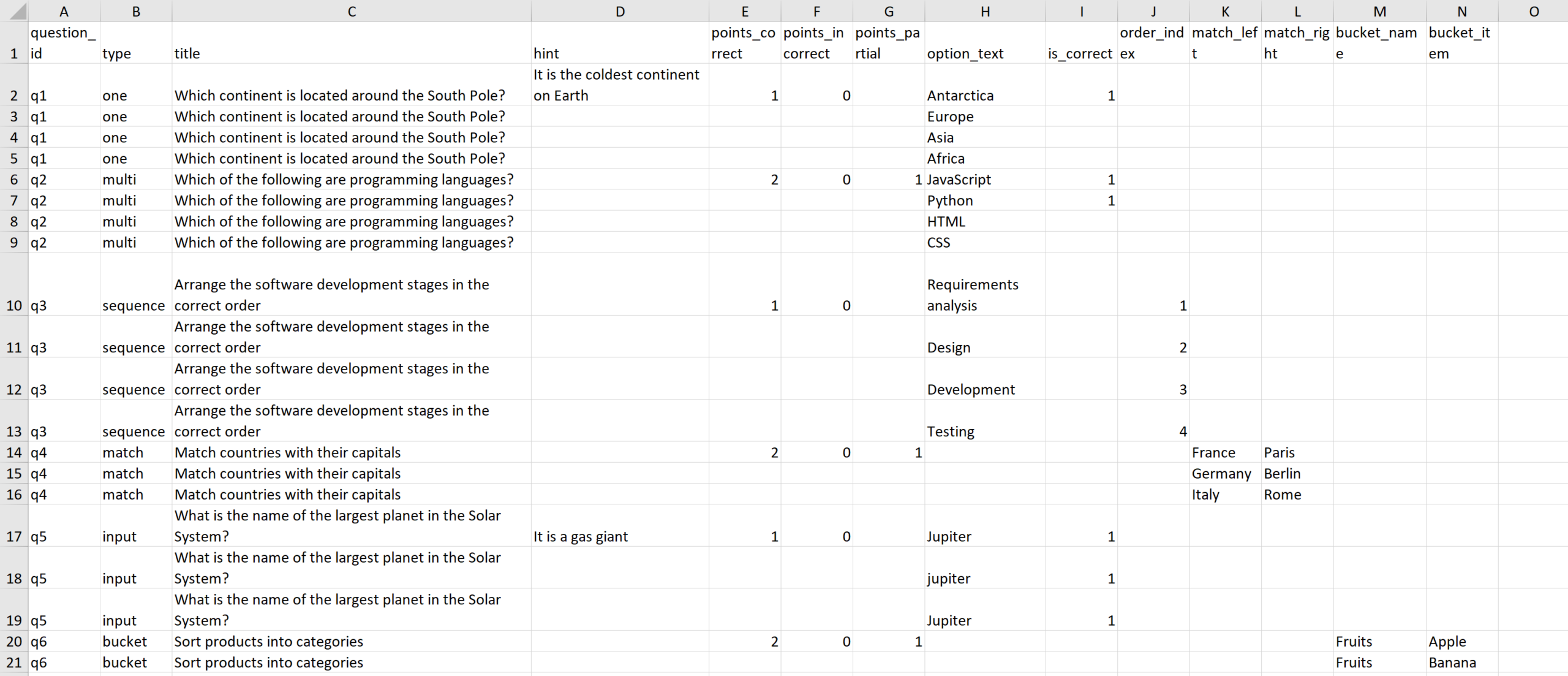
- question_id — question ID
- type — question type. One — single choice, multi — multiple choice, match — matching, sequence — ordering, input — text input, bucket — categorization into buckets
- title — the question text
- hint — hint
- points_correct — points awarded for a correct answer
- points_incorrect — points awarded for an incorrect answer
- points_partial — points awarded for a partially correct answer. This applies to multiple choice, matching, ordering, and bucket questions
- option_text — answer options for all test question types except matching and bucket questions
- is_correct — correct answer. Enter 1 in the row containing the correct answer
- order_index — enter numbers in this column to define the correct order for an ordering question
- match_left — enter the left-side items of the matching pairs in this column
- match_right — enter the right-side items of the matching pairs in this column
- bucket_name — enter the bucket names for a bucket categorization question in this column
- bucket_item — enter the answers that should be assigned to the corresponding buckets in this column
Let’s look at how to correctly fill in the file using examples:
- Single choice question. In the question_id column, enter q1 (the first question). In the type column, enter the question type — one. In the title column, enter the question text. If you have four answer options, there should be four identical rows, with the question ID, type, and title repeated in each row. If necessary, enter a hint in the hint column. Enter the points for correct and incorrect answers. In the option_text column, enter the answer options one per row. In the is_correct column, enter 1 in the row containing the correct answer.

- Multiple choice question. In the question_id column, enter the question ID, for example q2 (the second question). In the type column, enter the question type — multi. In the title column, enter the question text. If you have four answer options, there should be four identical rows, with the question ID, type, and title repeated in each row. If necessary, enter a hint in the hint column. Enter the points for correct, partially correct, and incorrect answers. In the option_text column, enter the answer options one per row. In the is_correct column, enter 1 in the rows containing the correct answers.

- Sequence question. In the question_id column, enter the question ID, for example q3 (the third question). In the type column, enter the question type — sequence. In the title column, enter the question text. If you have four answer options, there should be four identical rows, with the question ID, type, and title repeated in each row. If necessary, enter a hint in the hint column. Enter the points for correct, partially correct, and incorrect answers. In the option_text column, enter the answer options one per row. In the order_index column, enter the correct sequence using numbers from 1 to 4, where 1 corresponds to the option that should come first in the student’s answer, and so on.

- Matching question. In the question_id column, enter the question ID, for example q4 (the fourth question). In the type column, enter the question type — match. In the title column, enter the question text. If you have three answer pairs, there should be three identical rows, with the question ID, type, and title repeated in each row. If necessary, enter a hint in the hint column. Enter the points for correct, partially correct, and incorrect answers. In the match_left column, enter the items that will appear in the left-hand list of the matching question on the platform. In the match_right column, enter the corresponding items that will appear in the right-hand list. Matching pairs must be entered in the same row.

- Text input question. In the question_id column, enter the question ID, for example q5 (the fifth question). In the type column, enter the question type — input. In the title column, enter the question text. If you have three accepted answers, there should be three identical rows, with the question ID, type, and title repeated in each row. If necessary, enter a hint in the hint column. Enter the points for correct and incorrect answers. In the option_text column, enter the accepted correct answers one per row.

- Bucket categorization question. In the question_id column, enter the question ID, for example q6 (the sixth question). In the type column, enter the question type — bucket. In the title column, enter the question text. If you have four answer options, there should be four identical rows, with the question ID, type, and title repeated in each row. If necessary, enter a hint in the hint column. Enter the points for correct, partially correct, and incorrect answers. In the bucket_name column, enter the bucket names one per row. In the bucket_item column, enter the answers corresponding to each bucket. For example, if two answers belong to the same bucket, enter the bucket name in the bucket_name column in two rows and enter the two corresponding answers in the bucket_item column. Then, lower down in the list, enter the name of another bucket and, in the adjacent column, enter its corresponding answers one per row.

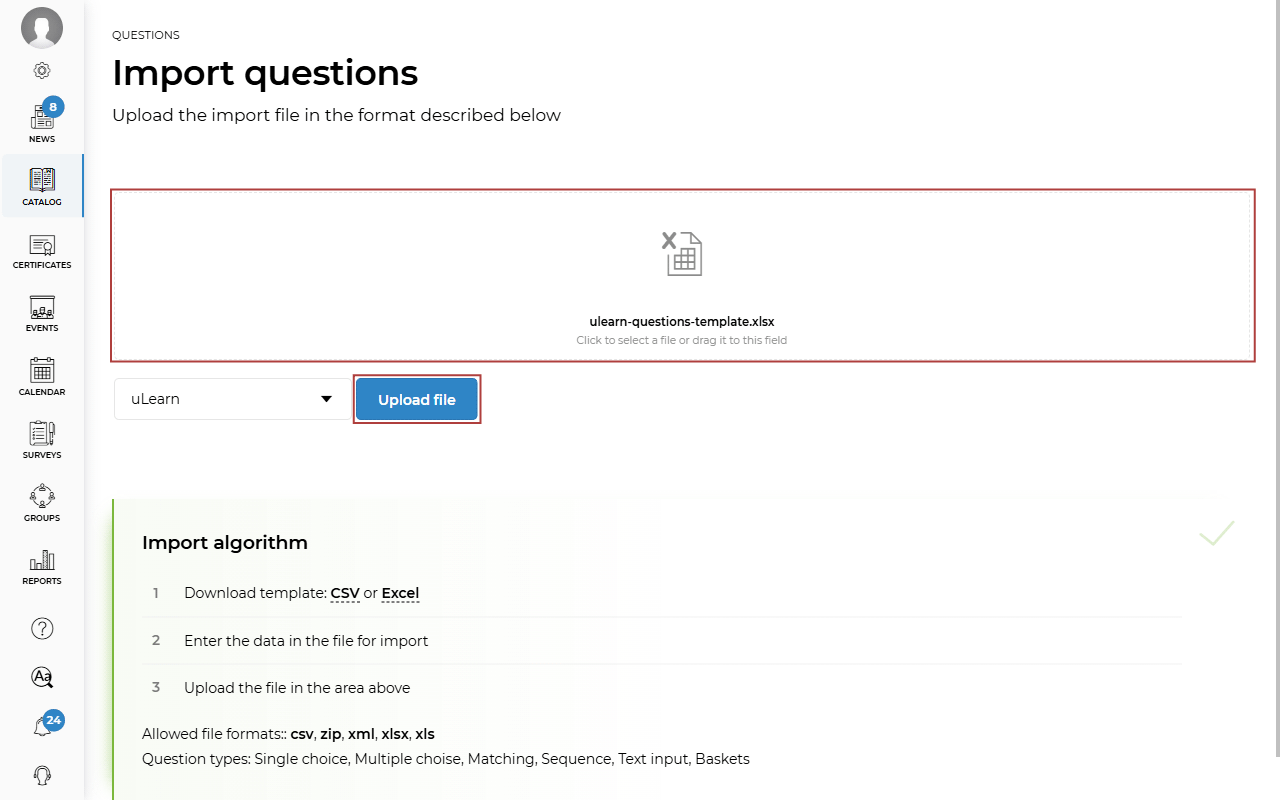
After you have completed the import file, upload it to the platform and click Upload file.
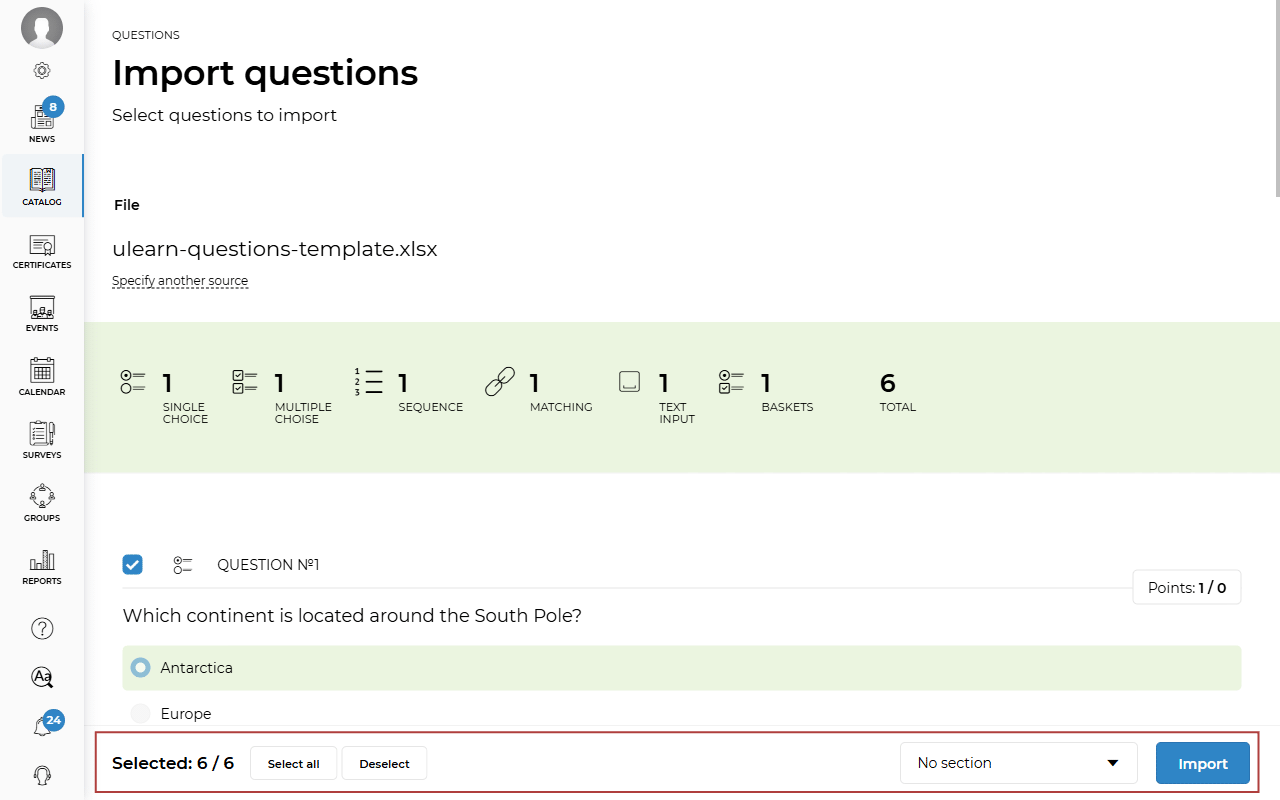
After the file has been uploaded, you will see the questions you have created. Click Select all or check the boxes next to the questions you want to import. If necessary, select the section where you want to add the test questions, then click Import.