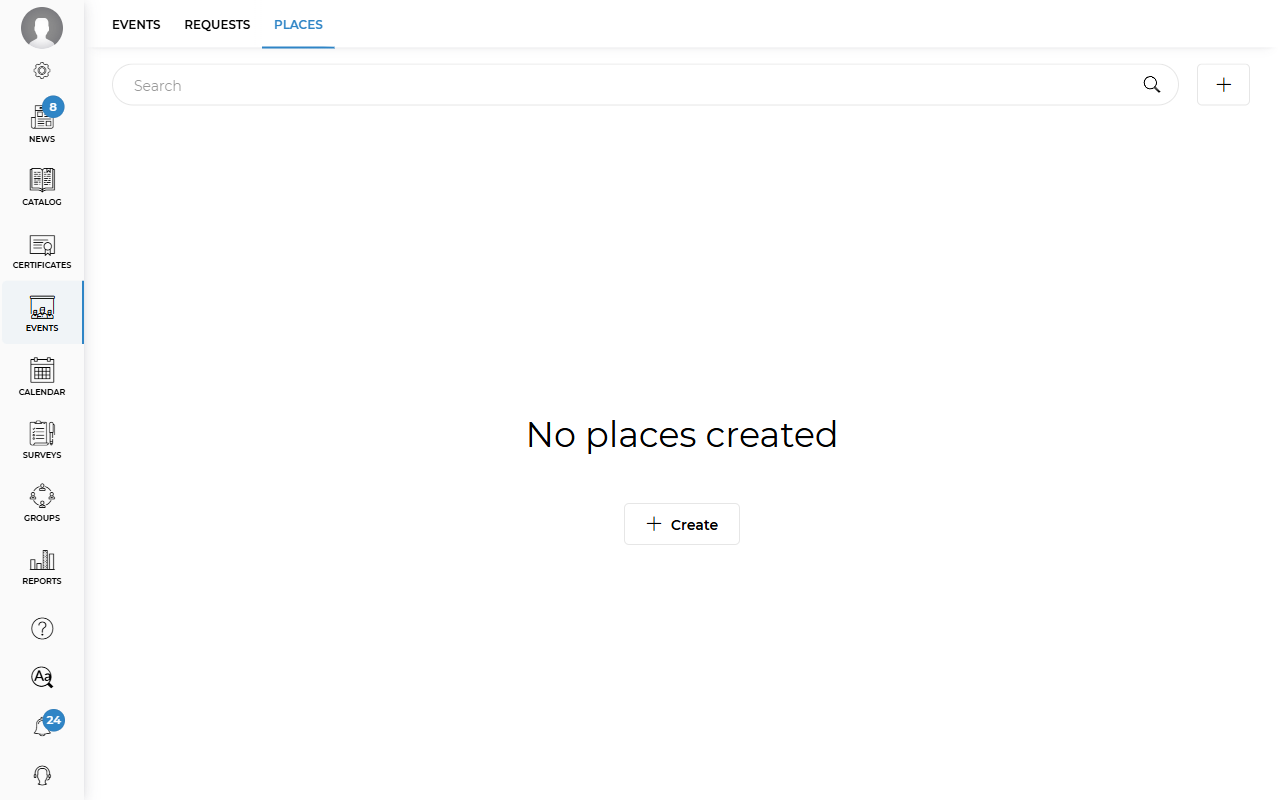
To add an event venue, go to the corresponding section and open the Places tab. Click Create.
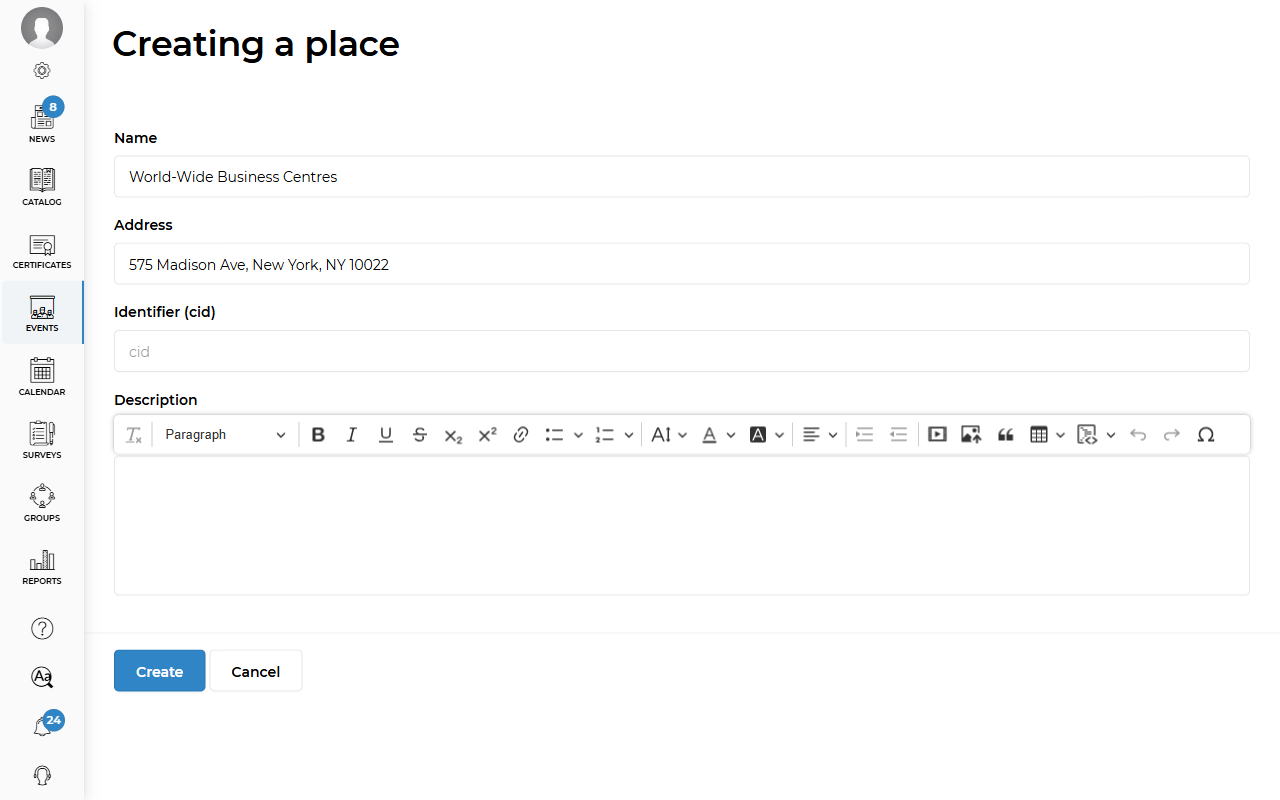
Enter the address. If needed, you can also add the venue name, identification number, and description. Click Create.
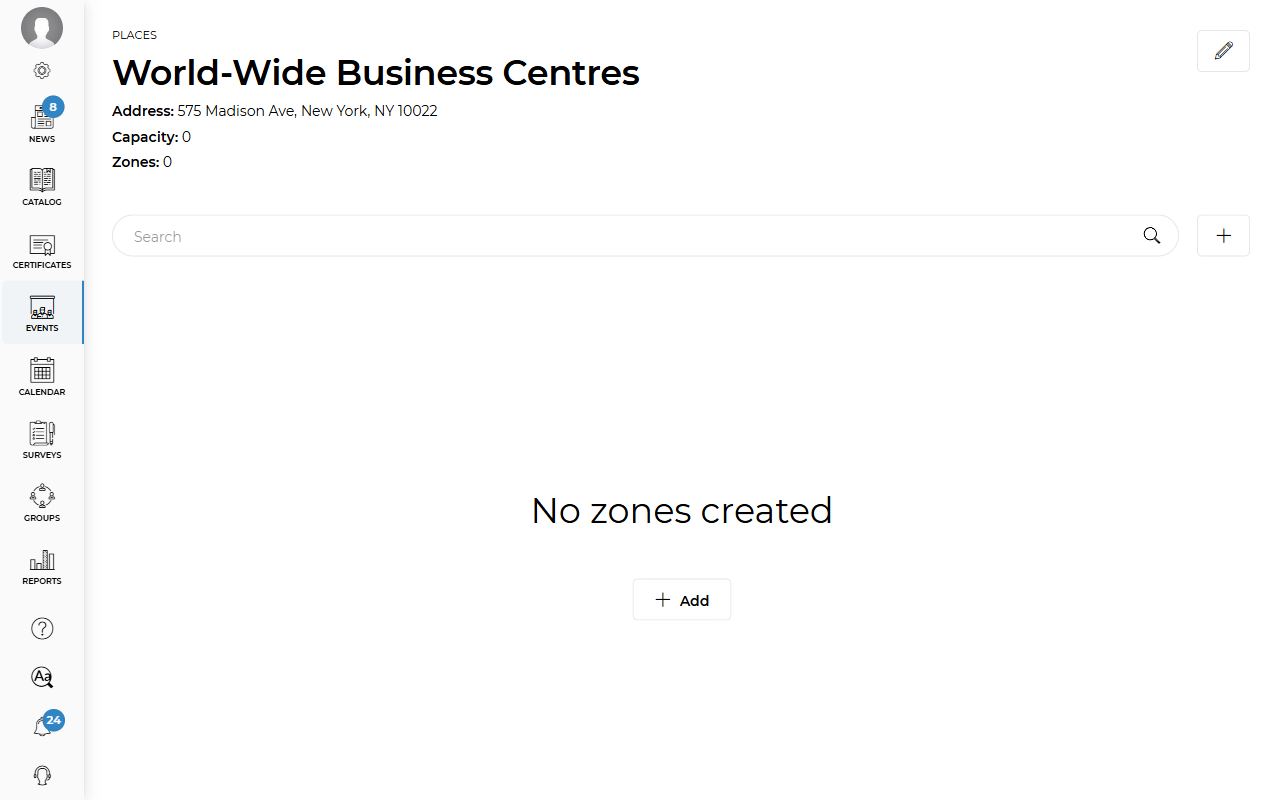
After creating a venue, you need to add Zones for this address. To do this, click Add.
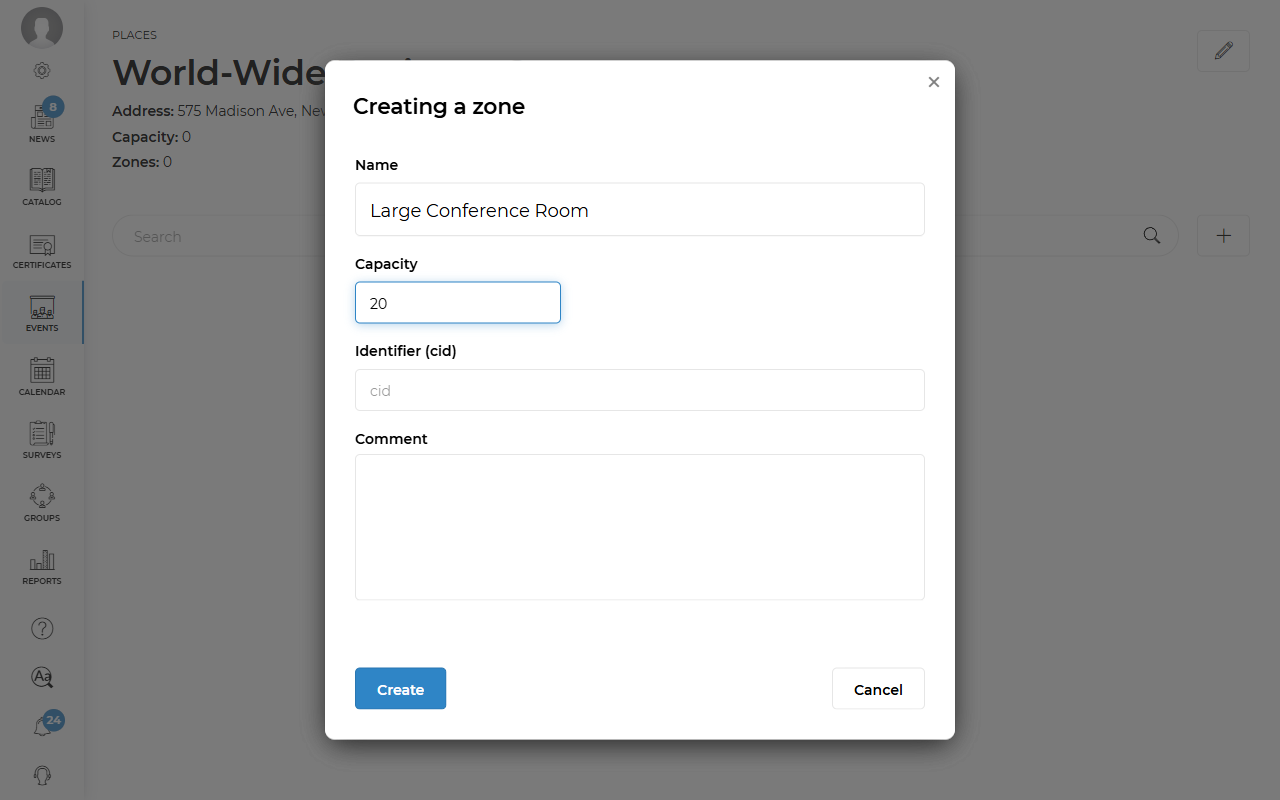
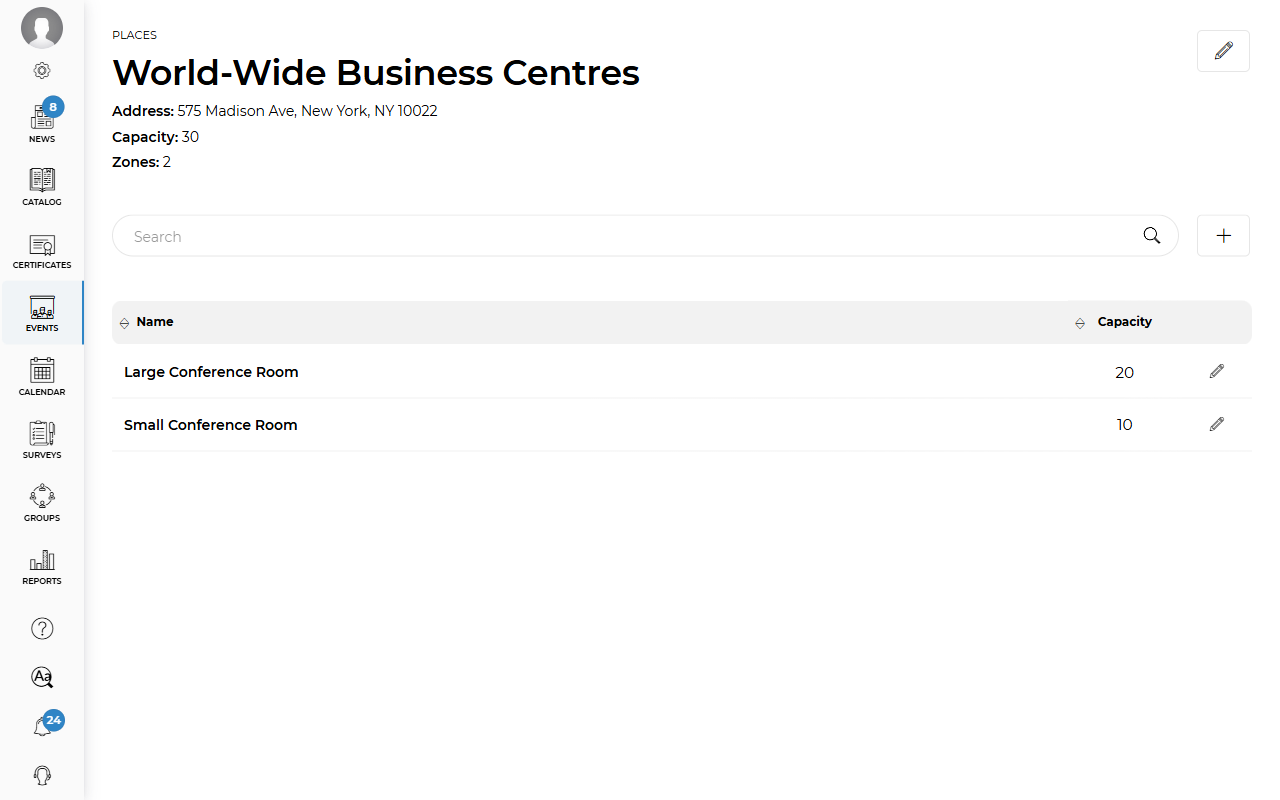
Enter the zone name and capacity. For example, First Conference Room with a capacity of 20 people. If needed, you can also add an identification number and description. Click Create.
In the venue preview, you can see a list of its zones, the total capacity, and the address. To edit a zone, click the Pencil icon in the row of the required zone. To edit the venue, click the Pencil icon in the upper-right corner of the screen.
To add an event venue, open the Events section and go to the Sessions tab. Then open the required session or create a new one. In the Event location field, select Offline → Select from the list of places → Select place → Select zone.
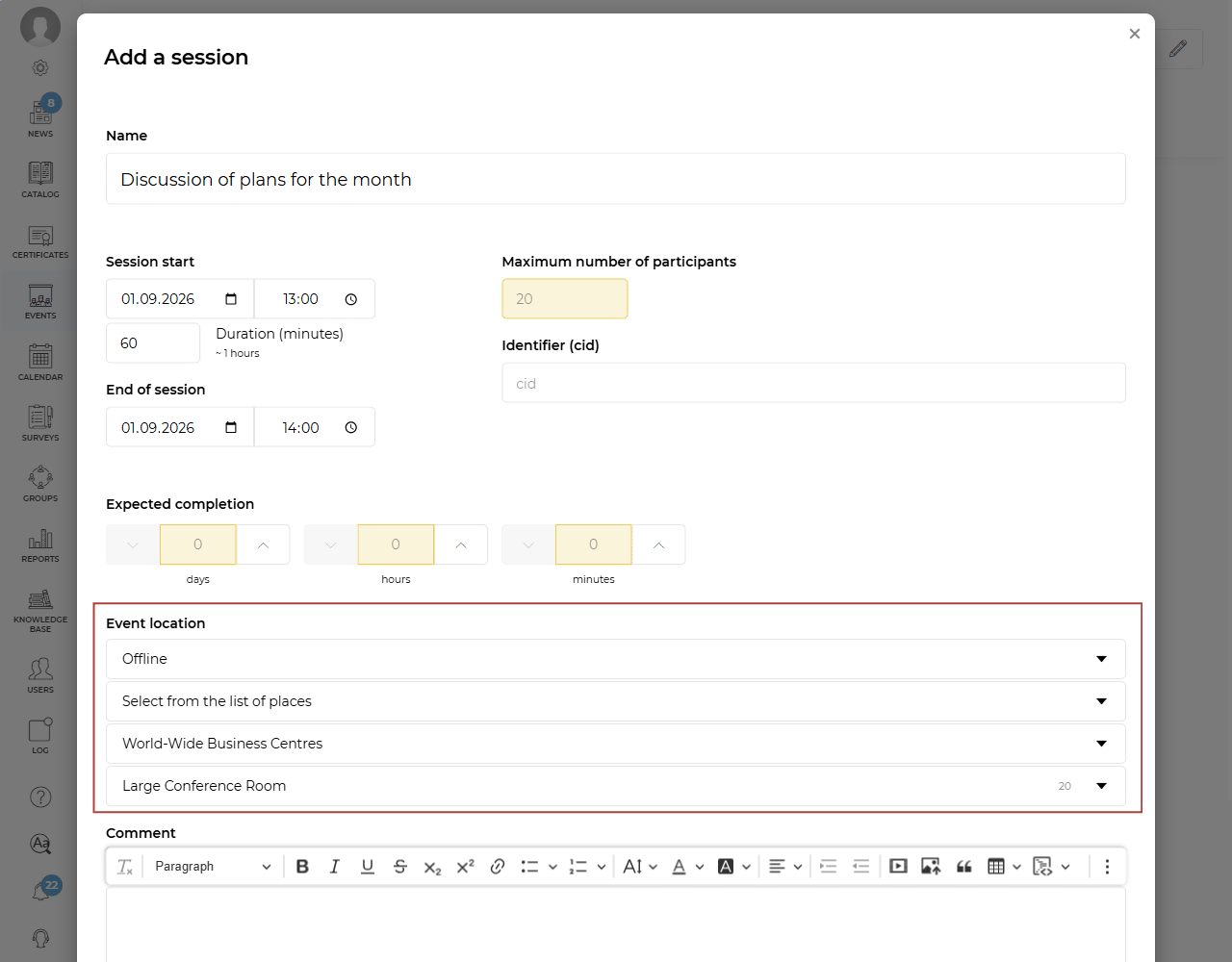
After adding the venue and zone, the maximum number of participants available for this zone will be automatically filled in. You can change the number as needed. Then click Save.
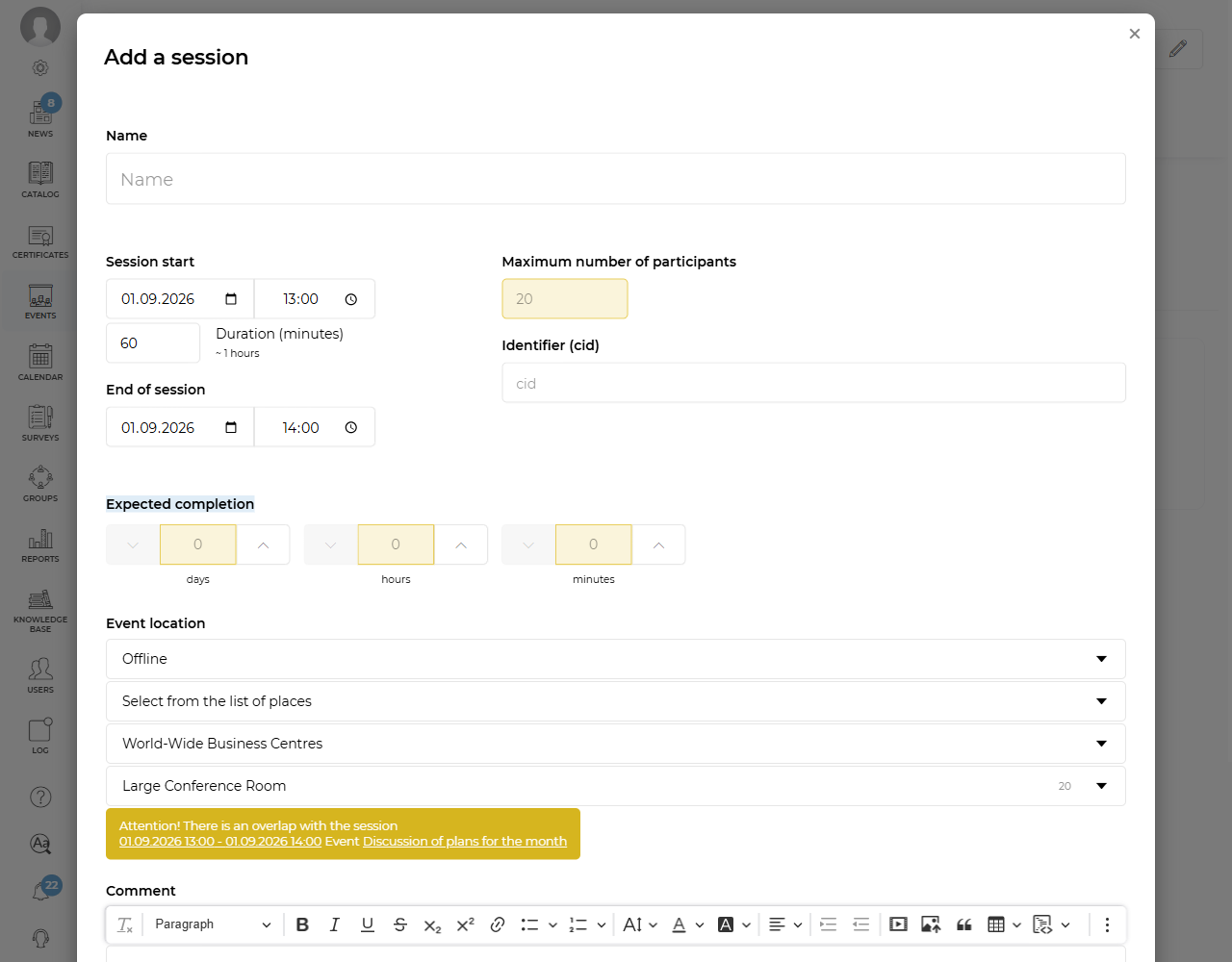
If you create a session with a time and zone that overlap with another session, you will see a warning. In this case, you can change the time or venue, or save the session with the current settings if necessary.
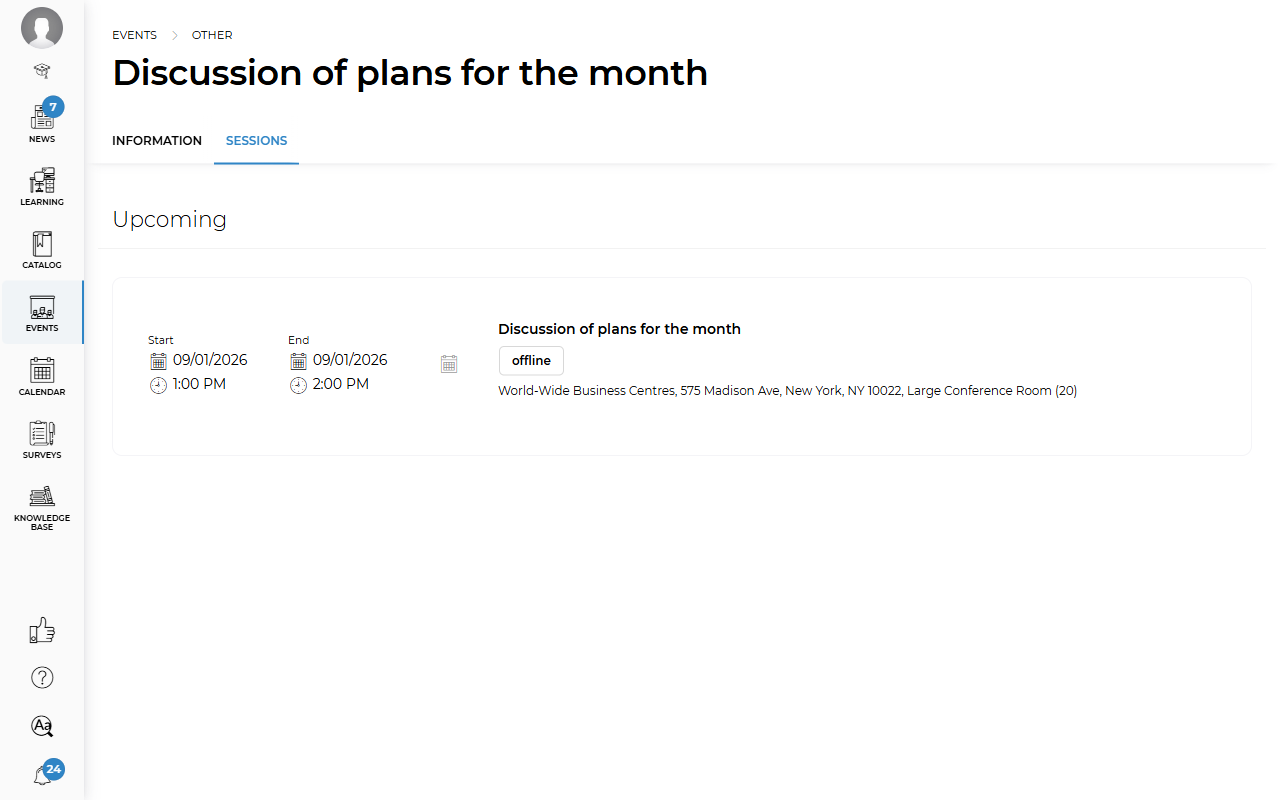
All platform users with access to the event session can see the venue information in the session preview or after opening the session. Below is an example of how a session assigned to a student appears to them.